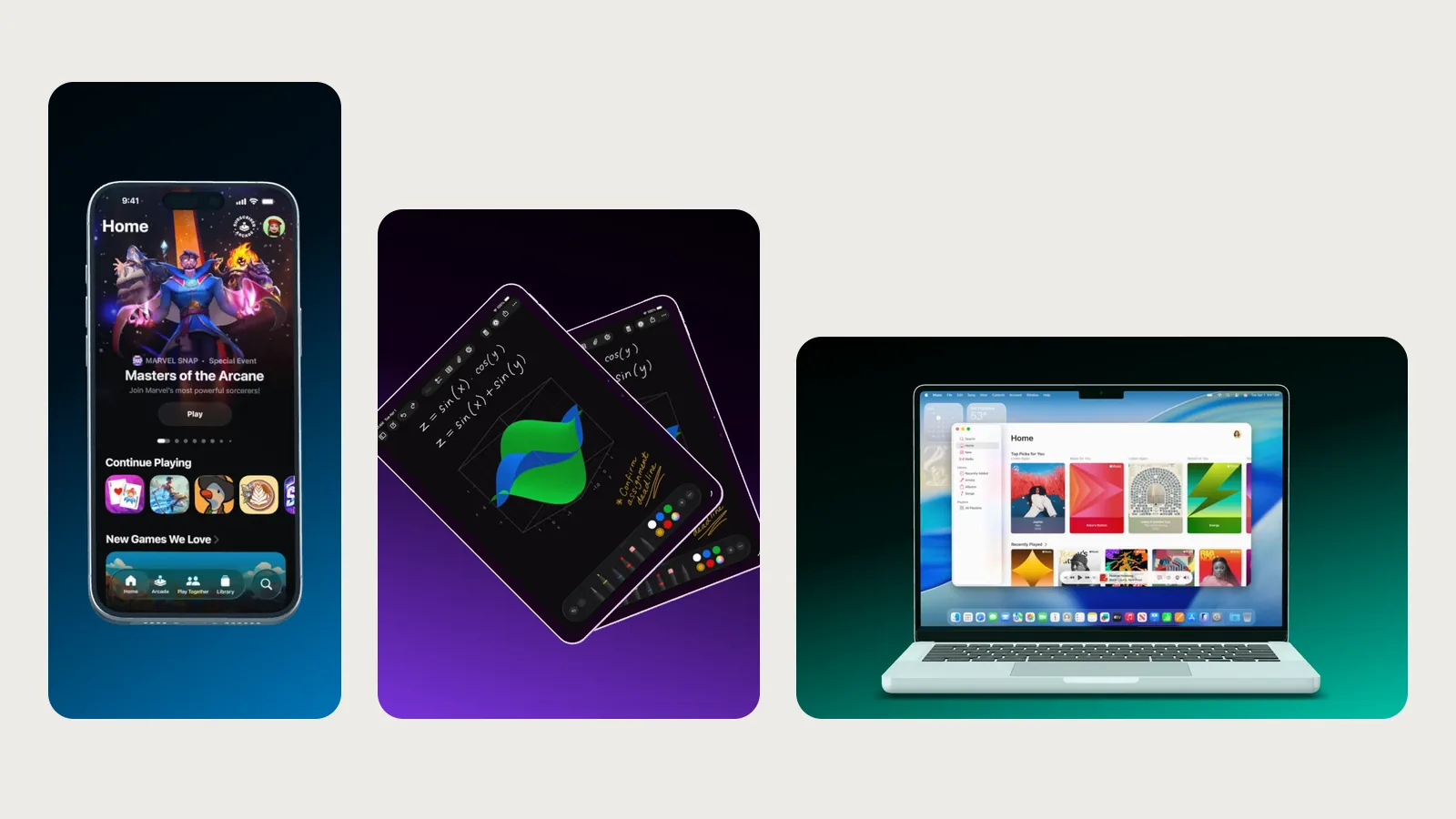
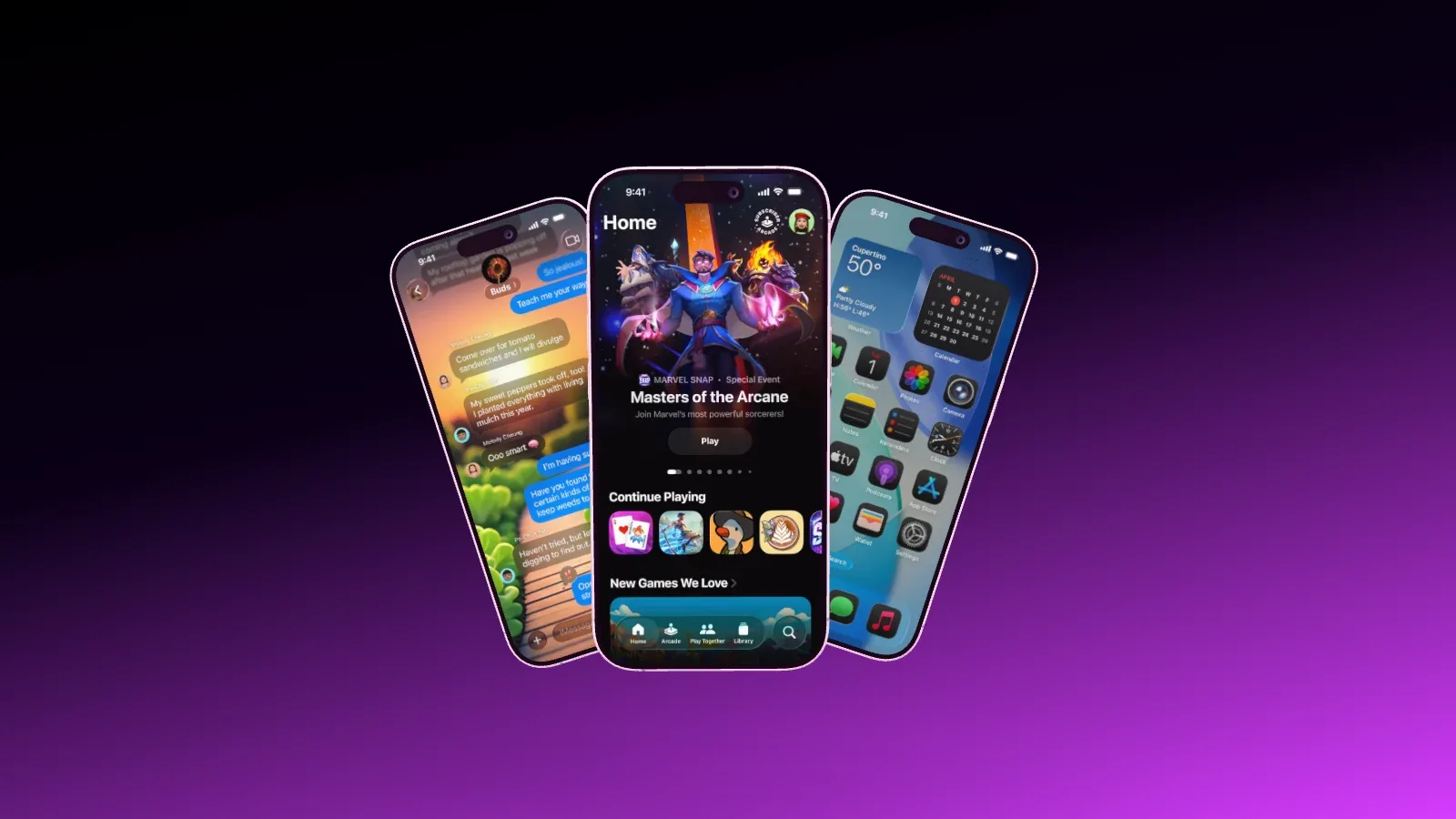
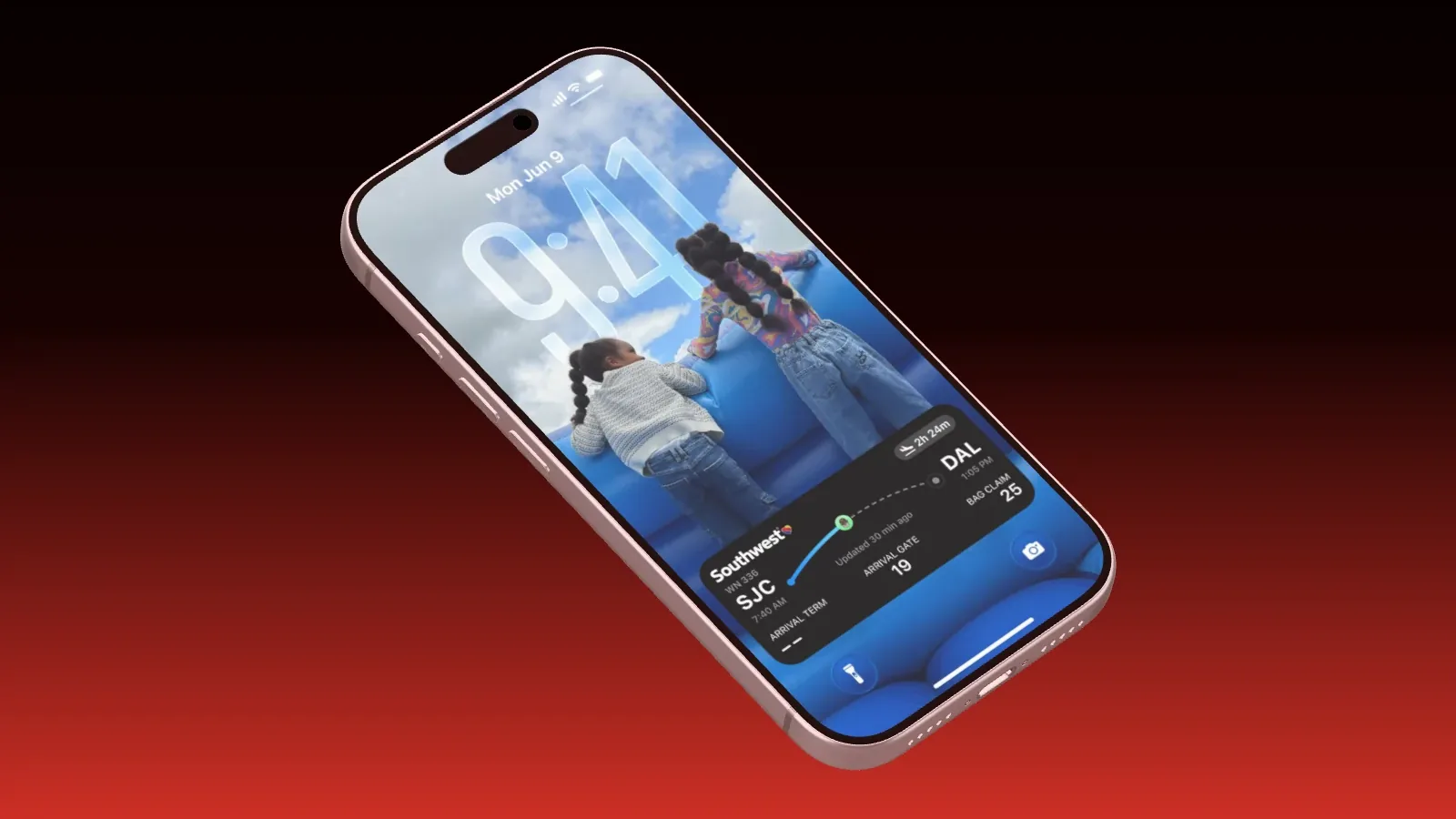
Launch video with AI: from screenshots and a song to a finished Reel
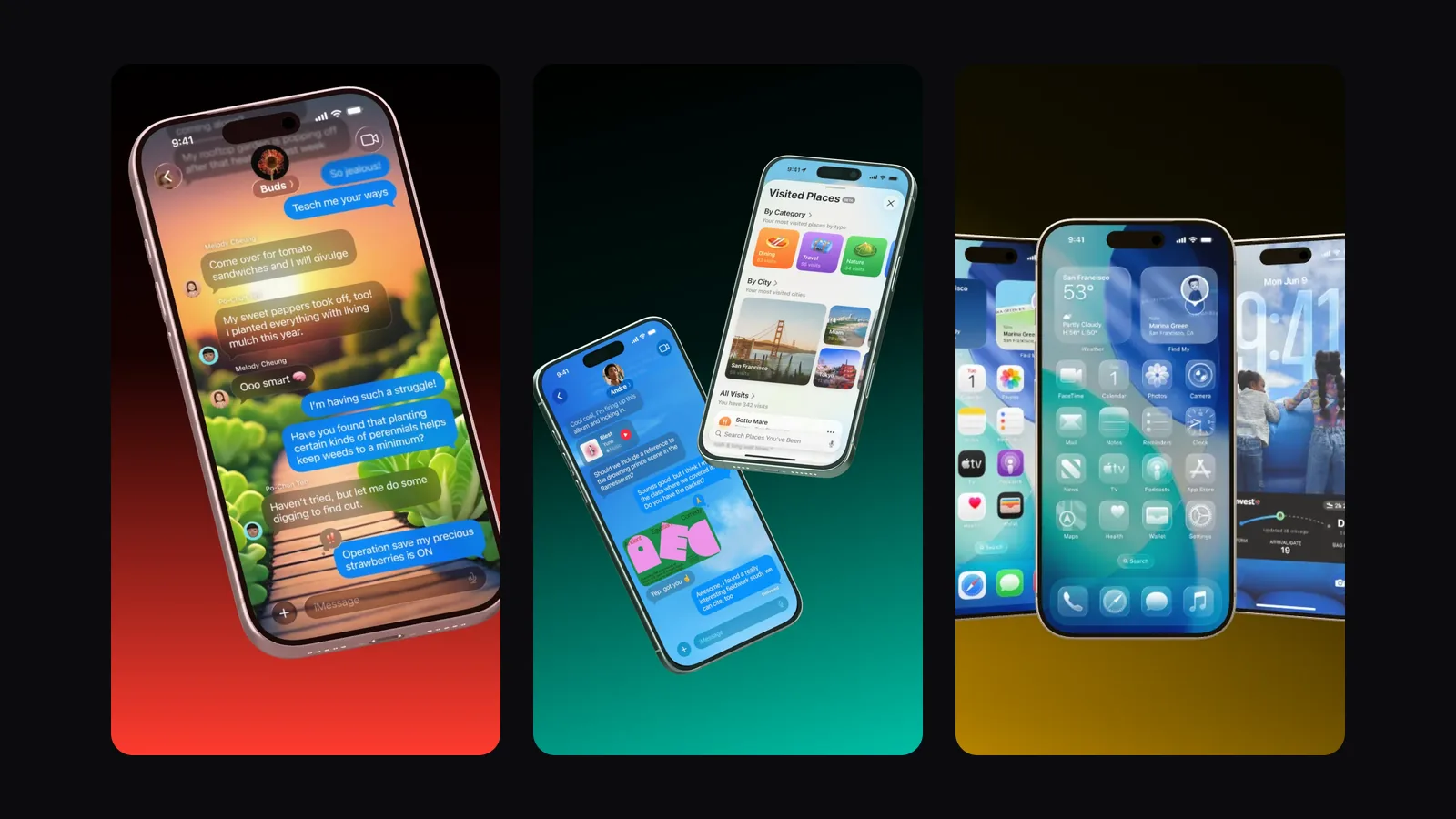
A launch video is a short film for launch day, cut to your song. In Showoff, your AI builds it over MCP from your screenshots and finished blocks. Then your browser renders it as an MP4 at 30 frames per second, with sound. It usually runs 30 to 45 seconds, as a vertical Reel at 1080 × 1920 pixels or in landscape 16:9.
What to prepare
- Showoff, connected to your AI. How that works is in App Store screenshots with AI.
- Two to four screenshots of your app, ideally at the device’s real size.
- A song as MP3, M4A, WAV, OGG or FLAC, up to 25 MB.
- If you like, your app icon at 1024 × 1024 pixels. It then sits above the name on the end card.
If the screenshots and the song sit at a public address, give your AI the links. If they are on your computer, an AI with a terminal such as Claude Code uploads them with the commands Showoff hands it. Each screenshot lands in its own slot of the video. You can also upload the song yourself on the video’s page, as long as it is still missing there.
The story comes first
Nobody remembers a row of claims like fast, secure and beautiful. So your AI first writes the story of the video in two to four short sentences. It starts with a want or a problem, shows the way there and ends with what you get. Each block then tells the next part of it in two short lines above the picture.
You help most by saying who your app is for and what those people get from it. Your AI handles the rest, because the rules for good lines are in its guide. A line has two to four words and at most 24 characters, and there are never more than two rows of text at the top.
The blocks
Each block is one shot with its own devices. A video has at most eight, and three or four plus the end card work best. These are the ones you will use most.
- The hero opens the video. The device lands on the drop, a phone turns out of the dark, a MacBook opens its lid.
- A feature shows the next screenshot, on the same device the way the app itself changes screens.
- A flow taps through two to four screens of one journey, with a finger on a phone and the pointer on a Mac.
- In scroll, compare, notification and typing, the display itself does something. A long screenshot scrolls, a divider sweeps across before and after, notifications drop in, text types itself into a field.
- Duo, trio and grid show two, three or four devices at once. The lineup shows the same product on MacBook, iPad and iPhone.
- The chat shows Claude on the MacBook, with attachments, a request, the tools and the reply.
- The end card closes the video. Your app’s name slams into its web address on the beat.
All 21 blocks are in the glossary.
No cuts
There is no hard cut and no dissolve between the blocks. On the same device, the screen changes the way the app itself does it. Between two scenes, the camera whips across in a fast pan, and a short flicker like a broken stream leads into the end card. Your AI picks the right transition by itself.
The song sets the timing
Showoff detects the tempo of the song, every beat, the drops and the structure of intro, drops, breaks and outro. The device lands on the strongest drop, and every move sits on the beat. If a song is much faster or slower than usual, Showoff adjusts the steps of the video. Nothing rushes, and nothing drags.
If the detection misses the moment you mean, tell your AI the second, for example “Put the drop at second 42.” In the same way it places the end card on a specific moment, such as the next drop after a break.
Portrait or landscape, dark or light
Portrait 9:16 is a Reel for Instagram, TikTok and Shorts and suits apps on the phone. If the video mostly shows a MacBook, a website or browser windows, choose 16:9 for YouTube, your landing page or X. Then the whole screen fits in the frame.
The dark look is the one from the Showoff trailer. The devices come out of the dark, and the light takes on your app’s color. The light look works with a soft gradient that opens up on the drop. Phones in the video are iPhones unless you explicitly ask for another model, and each one draws its own clean 9:41 status bar.
How to ask for it
You can adapt these sentences. Always say what your app is about.
- Make a launch video for my app Tempo with Showoff. It plans your day in three blocks. The screenshots are in ./screenshots, the song is song.mp3.
- Make the video light, with a gradient from lavender to pink.
- My app is a web app. Show it on the MacBook and make the video landscape in 16:9.
- My app is on the App Store and Google Play. Put both badges under the end card.
- Cut the video down to three blocks and the end card.
Render and download
Once the video is built, your AI gives you the link to its page. It also sits in your projects, and a click on it opens the same page. There your browser renders the video frame by frame on your graphics card and shows what is being made. Keep the tab open while it runs. After a few minutes you download the MP4.
A launch video does not open in the editor. If something should change, tell your AI and it rebuilds the video. Then you simply render it again.
What it costs
Your AI builds launch videos over MCP, and MCP is part of Pro. On Free you can try it for 3 days, counted from your AI’s first request. Rendering costs nothing extra. The plans are on the pricing page.
Keep reading
Blocks and transitions in detail are in the documentation. If you only need a short clip without a song, take an animated template such as Push In and open it in the editor.