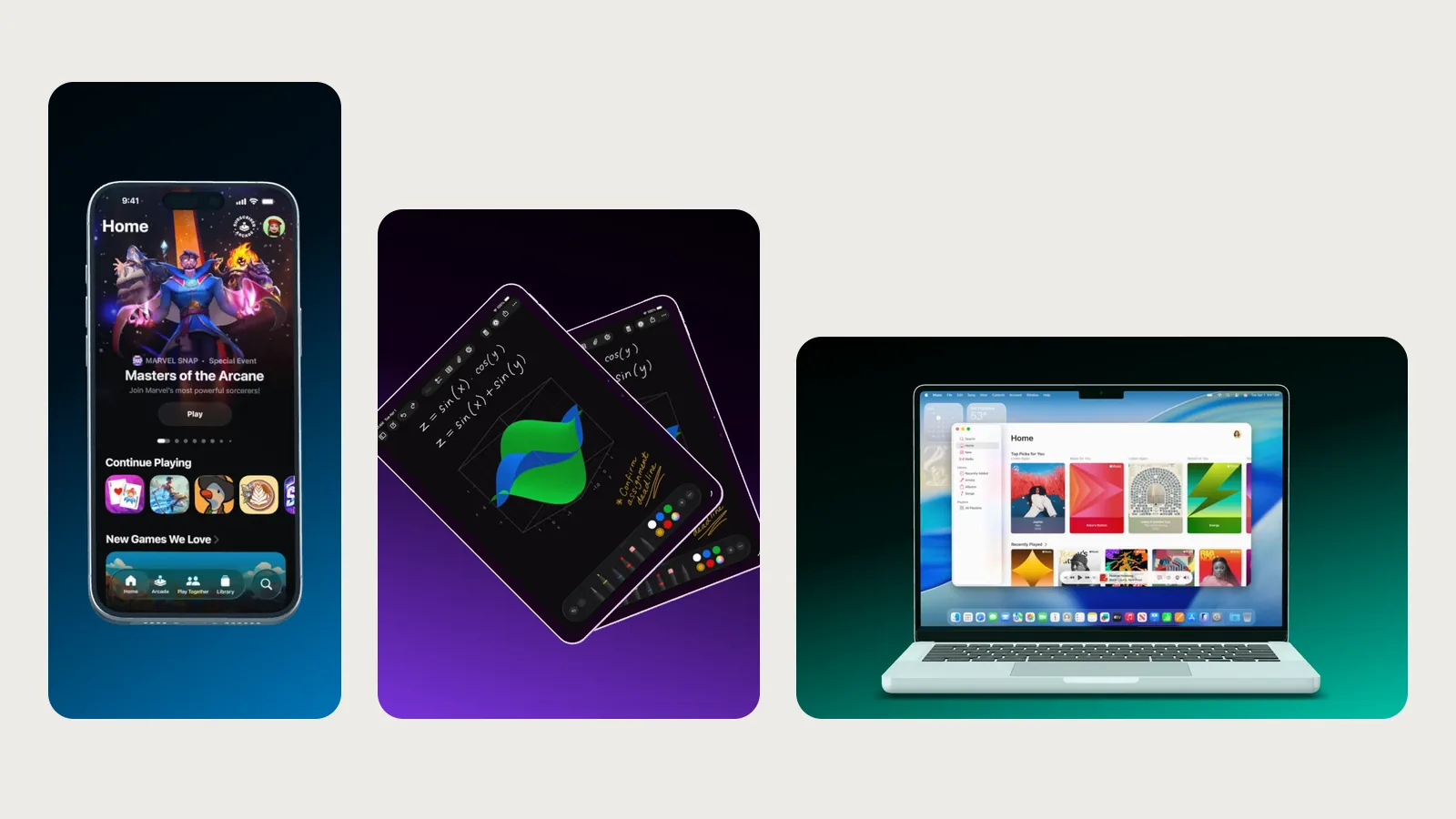
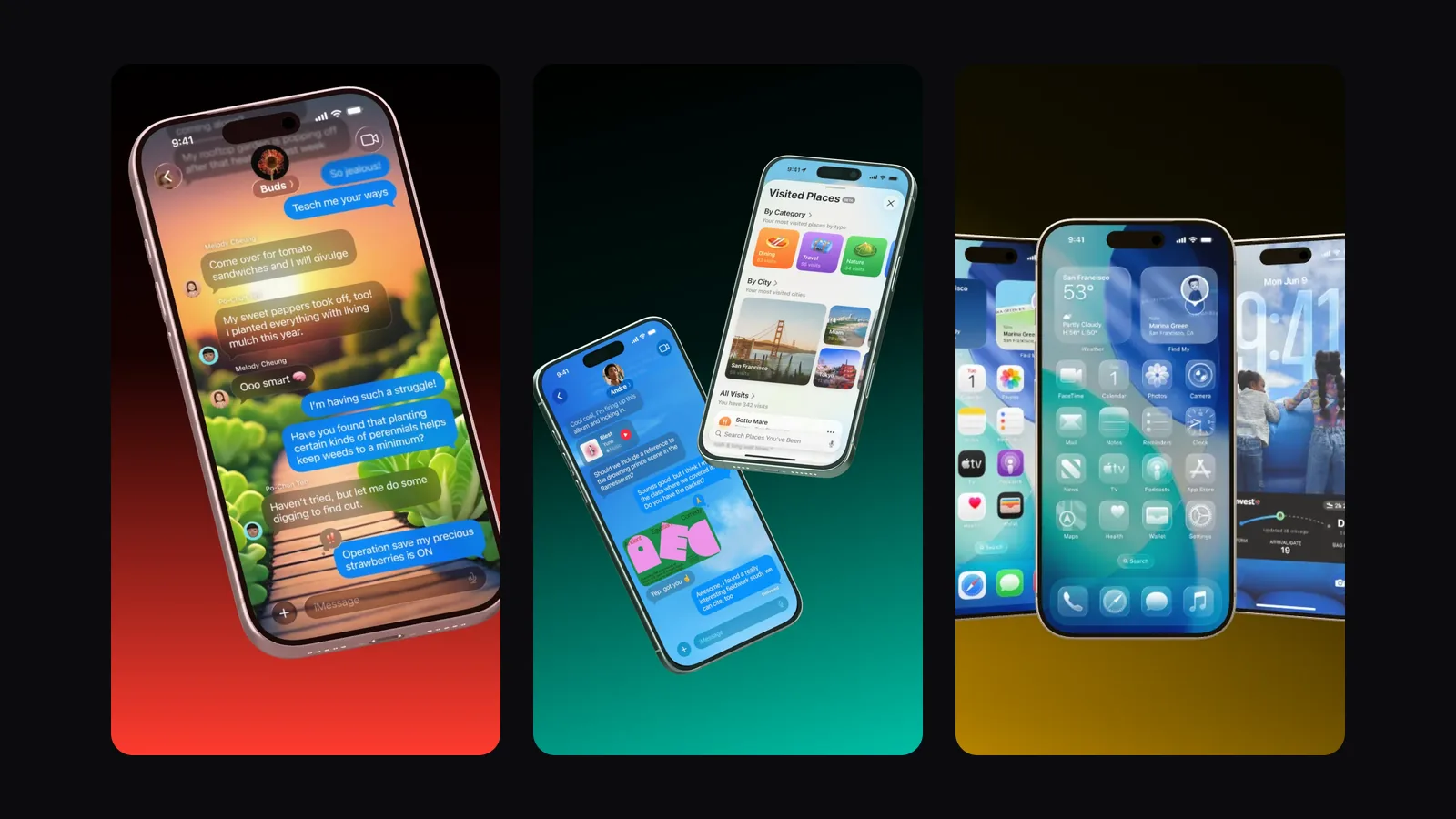
App Store screenshots with AI: connect Showoff to Claude, ChatGPT or Cursor
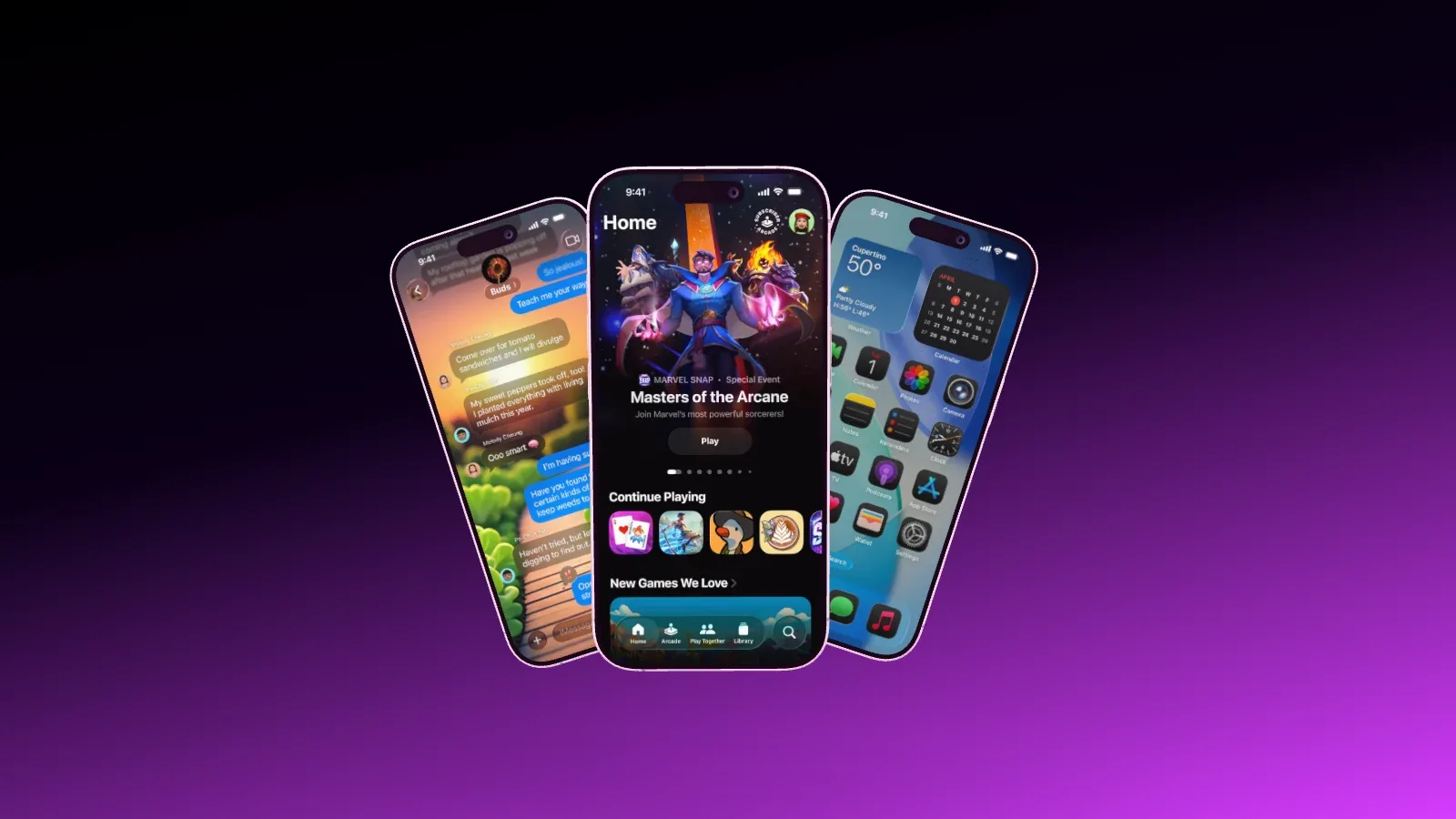
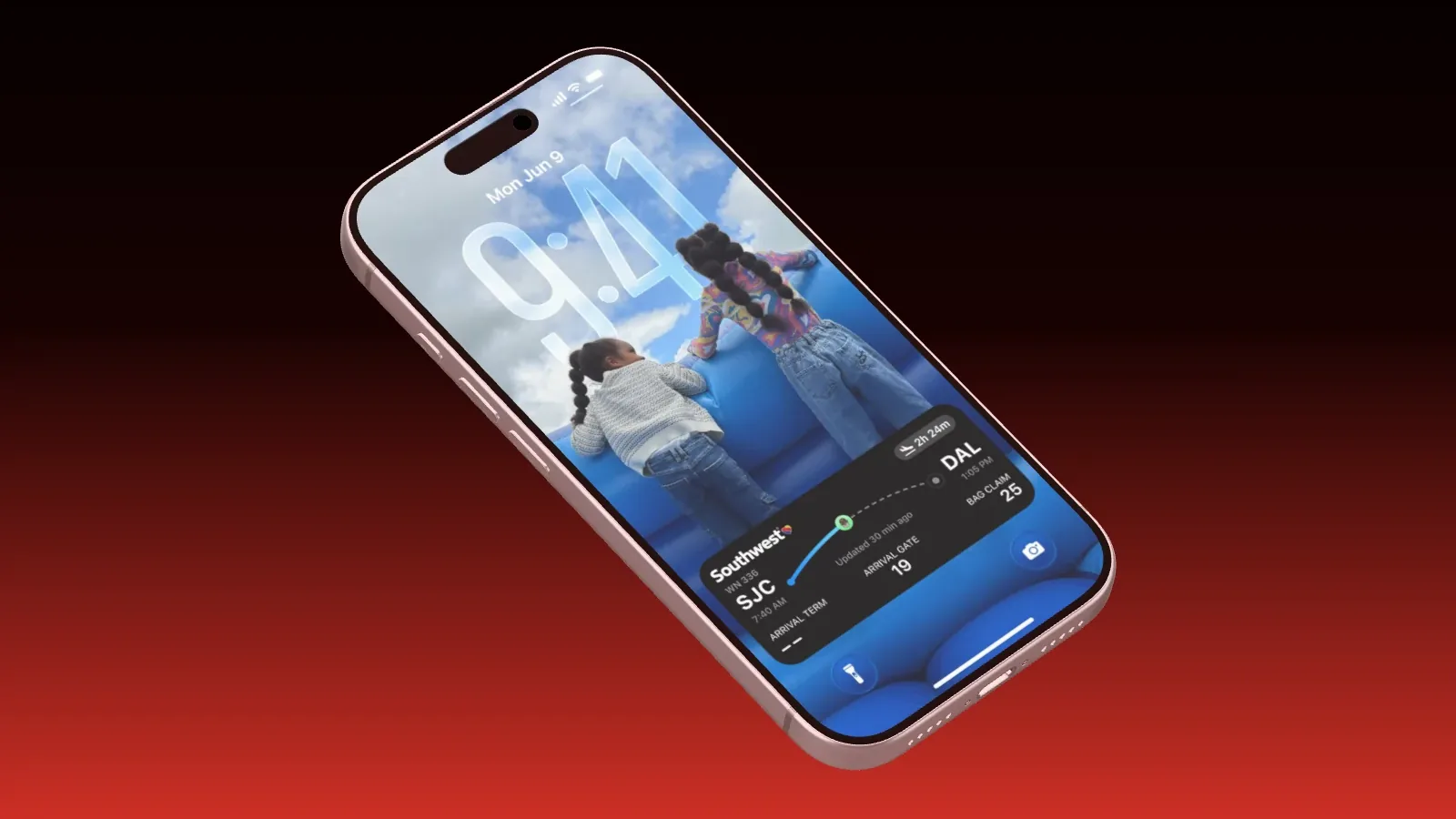
You no longer have to build a mockup by hand. Tell your AI what you need, and it builds it in Showoff, with device, layout, background and text. Before anything is saved, Showoff checks the image like an art director. The result then sits in your projects, and you can carry on in the editor.
What you need
- A Showoff account. It costs nothing.
- An AI that speaks MCP, such as Claude, ChatGPT, Cursor, Claude Code, Codex or Gemini CLI.
- Pro, or the trial on Free. There your AI can work for 3 days, counted from its first request.
Connect Showoff
The server address is https://showoff.dev/mcp, and you don’t need a key. The first time you connect, your browser opens. Sign in to Showoff there, pick the organization and approve.
- In Claude, open the settings and add a custom connector with this address under Connectors.
- In ChatGPT, turn on developer mode in the Security section of the settings. Then click the plus button under Plugins, paste the address and choose OAuth.
- For Cursor and VS Code, click the matching button in the MCP section of Showoff’s settings. It opens the program’s installer.
- In Claude Code, add the server with claude mcp add --scope user --transport http showoff https://showoff.dev/mcp and then sign in under /mcp.
The steps for every client are also in the documentation.
Get your screenshots to the AI
Your screenshots get into Showoff fastest in one of these three ways.
- If they sit at a public address, such as your website, just name the links. Showoff fetches the images itself.
- If they are on your computer, an AI with a terminal such as Claude Code or Cursor uploads them straight into the project through an upload link. You only name the folder.
- Or your AI creates the project and you drag the screenshots onto the devices in the editor yourself. You both work on the same project.
Good prompts
Say what only you know, which app, which screenshots and what the image is for. What a good mockup looks like, the AI knows from Showoff’s guide. You can adapt these examples.
- Use the Showoff template “Fan Trio” and put my three screenshots on the iPhones.
- Build me an App Store 6.9-inch image with an iPhone 17 Pro and this screenshot, with a calm background in my app’s color.
- Add a short headline at the top and export the image as a JPG.
- Build the same image for all five screenshots in ./screenshots and export each one.
- Show me three templates that fit an image with a MacBook and an iPhone.
Every template page has a ready sentence for your AI that you can copy, for example Low Hero. The glossary explains the layout names.
A set for the store
For the App Store you usually need several images in the same style. Ask the AI to build the same image for each screenshot, with the same template or the same layout. Set the size once, for example App Store 6.9-inch for the iPhone and 1080 × 1920 for Google Play.
What Showoff checks before saving
Every change goes through the art-direction review. It finds devices that pass through each other, unnatural angles, text over a device, cut-off screenshots and doubled status bars. A change that brings a new error is not saved, and the AI gets the fix along with it.
On top of that, the AI looks at a preview after its changes and goes through a checklist, from cut-off content to colors that clash. What the math misses, a look should catch.
Where the result ends up
The project sits in your organization, and the AI gives you the link to the editor. If you have it open, you watch the AI build. If you like, Showoff renders the finished image right on the server, and the AI hands you a download link that stays valid for seven days.
Exports above Full HD count toward your exports in 2K and 4K, just like in the editor, App Store sizes included. Once the allowance on Pro is used up, the AI tells you about the €1 charge and only exports after you agree. The numbers are on the pricing page.
Keep reading
Which sizes the stores ask for is in App Store screenshot sizes 2026. How to swap in fresh screenshots from the simulator is in Keeping screenshots up to date with Claude Code. And for a video cut to your song, read Launch video with AI.