App Store screenshot sizes 2026: every size for iPhone, iPad, Mac and Google Play
Every new iPhone brings up the same question. Which sizes does App Store Connect want this time? The good news first. For the iPhone, one set in the largest class is enough. Below are the sizes that apply in September 2026 for iPhone, iPad, Mac, Apple Watch and Google Play, and how to export them with Showoff.
For the iPhone, 6.9-inch is enough
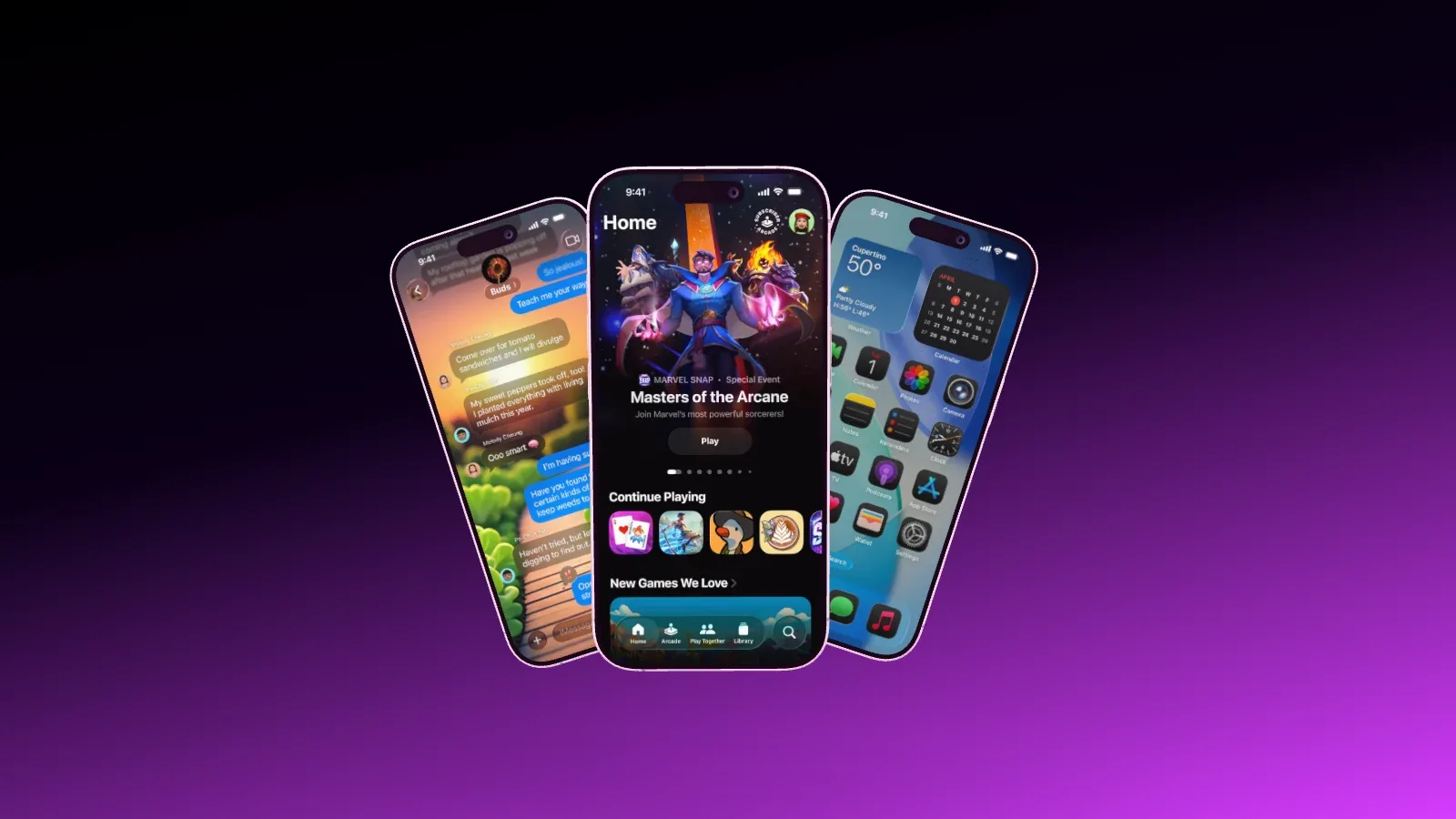
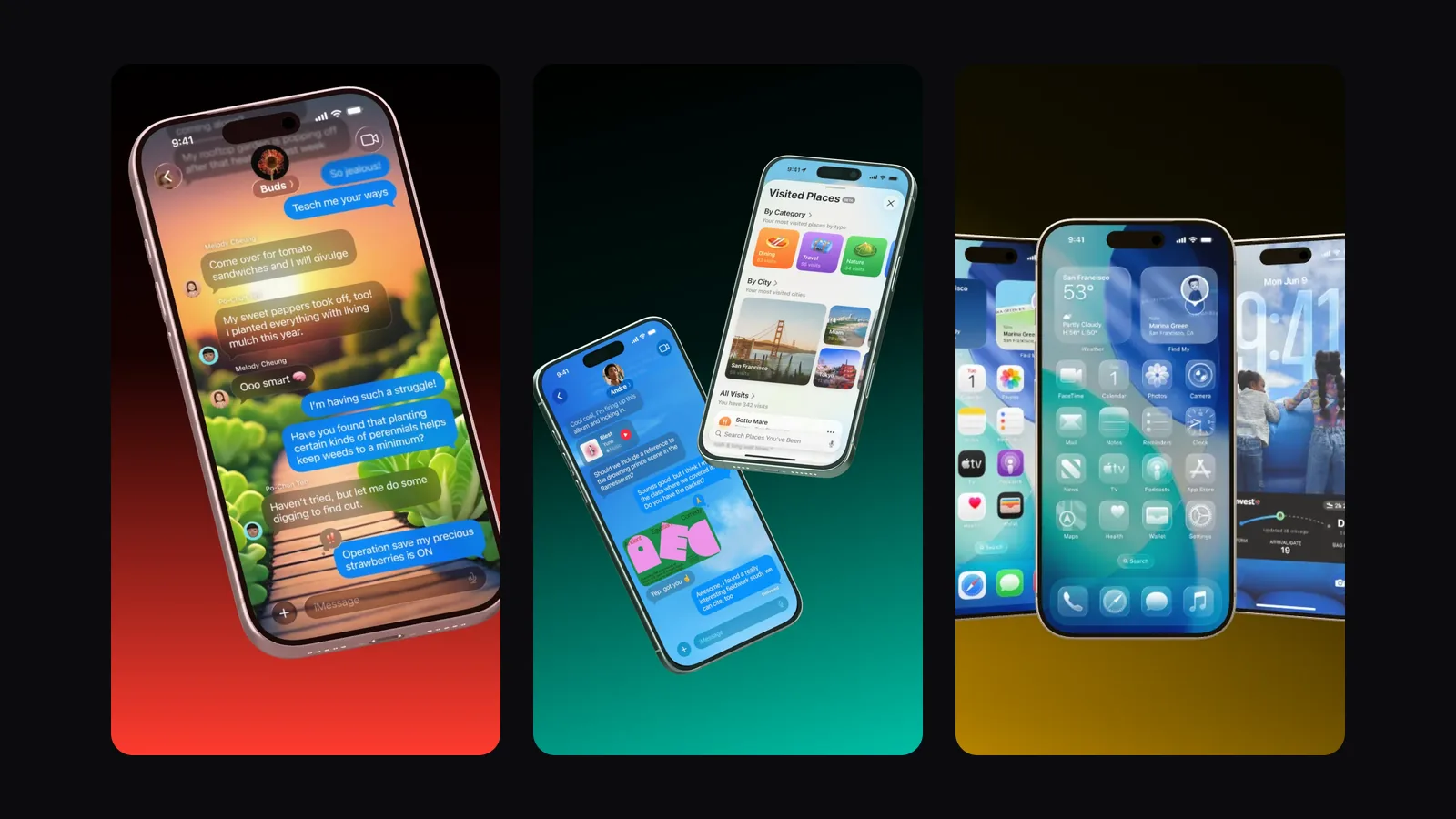
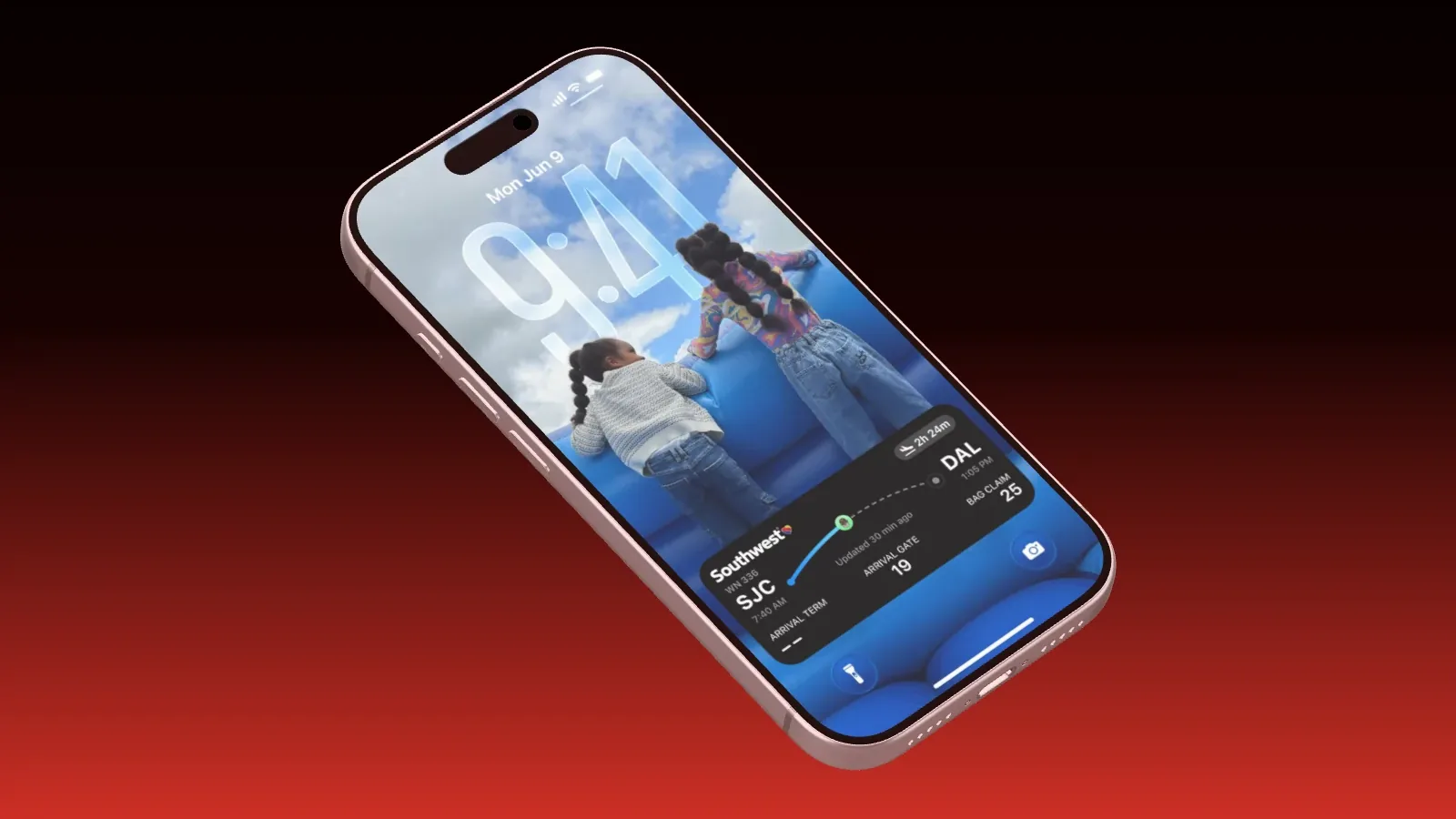
Apple asks for screenshots in the largest iPhone class, 6.9-inch. In portrait, App Store Connect accepts three sizes there, and the same sizes turned sideways in landscape.
- 1260 × 2736 pixels
- 1290 × 2796 pixels
- 1320 × 2868 pixels
This set is required unless you provide 6.5-inch images instead, at 1284 × 2778 or 1242 × 2688 pixels. The smaller iPhones no longer need images of their own. App Store Connect scales your screenshots down for them.
The iPad needs 13-inch
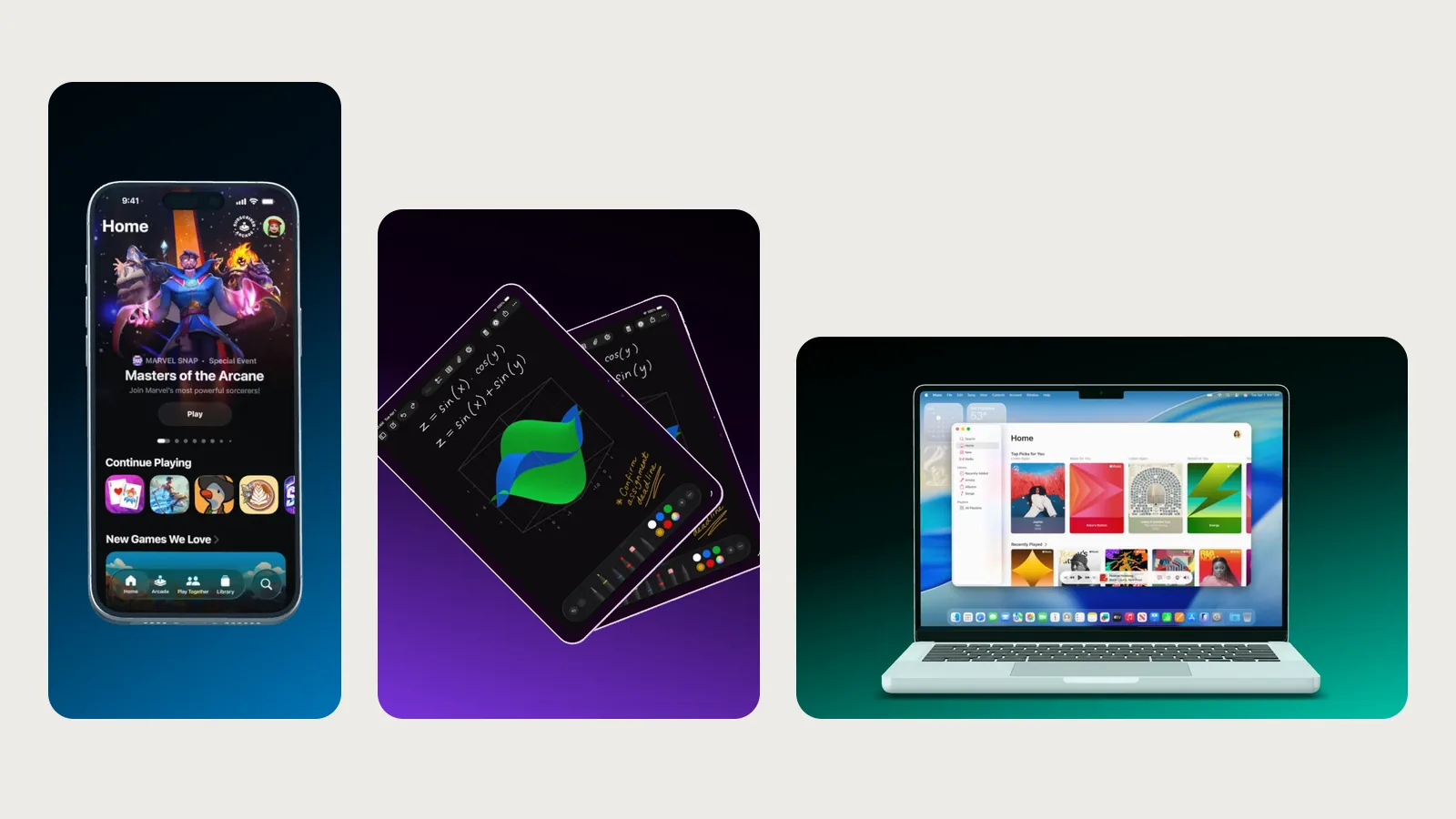
If your app runs on iPad, you need a separate set in 13-inch. The accepted sizes are 2064 × 2752 and 2048 × 2732 pixels in portrait. A stretched iPhone image is not an iPad screenshot, so show the interface your app has on the iPad.
Mac and Apple Watch
The Mac App Store uses a 16:10 aspect ratio, in one of four sizes.
- 1280 × 800 pixels
- 1440 × 900 pixels
- 2560 × 1600 pixels
- 2880 × 1800 pixels
Each Apple Watch class has its own size, for example 422 × 514 pixels for the Ultra 3 and 416 × 496 for the Series 11.
What else Apple expects
- One to ten screenshots per localization.
- The format is JPEG or PNG.
- The image has no alpha channel and no transparency.
Google Play
Google is more relaxed about sizes. In return, there is one rule that trips up many iPhone images. The long side can be at most twice as long as the short side, so an image at 1320 × 2868 gets rejected.
- Screenshots as JPEG or 24-bit PNG, without an alpha channel.
- For phones, at least 320 and at most 3840 pixels per side. Google recommends at least four screenshots of at least 1080 pixels, such as 1080 × 1920 in 9:16 portrait.
- For 7-inch and 10-inch tablets, at least four screenshots in 16:9 or 9:16, each side between 1080 and 7680 pixels.
- The feature graphic at 1024 × 500 pixels is required.
- The app icon is 512 × 512 pixels.
How to export these sizes in Showoff
In Showoff, the stage sets the size. In the stage settings, pick the App Store 6.9-inch entry at 1320 × 2868 pixels under “Bildgröße” (image size). For any other size, choose “Eigene Größe” (custom size) and enter width and height, for example 2064 × 2752 for the iPad, 2880 × 1800 for the Mac or 1080 × 1920 for Google Play. The stage always shows exactly the frame you will get.
Export with “Exportieren” (export) at the top right. For the stores, choose JPG at 1× resolution. JPG never has an alpha channel, and 1× gives you exactly the size you set.
If the longest edge is over 1920 pixels, the export counts toward your exports in 2K and 4K. That applies to the iPhone and iPad sizes. Free includes 1 a month, Pro includes 10, and after that each extra one costs €1. Once it is used up on Free, the dialog picks a Full HD step by itself. That step does not have the size Apple asks for, though. The 1080 × 1920 for Google Play stays within Full HD and is always free. The details are on the pricing page.
One scene, every size
A scene in Showoff is made of devices, light and a camera, not a finished image. For the next store you just change the size, check the framing and export again. For a set, right-click the device, swap the image with “Screenshot austauschen” (swap screenshot) and export again.
Good starting points are templates made for the store, such as Low Hero for the first image, Fan Trio for three screenshots at once or Tablet Fan for the iPad. If the whole set should feel like one piece, with a background that runs on from image to image, take a look at the App Store set.
For a clean time at the top of the image, see the guide to a 9:41 status bar.
In short
- For the iPhone, one set in 6.9-inch is enough, such as 1320 × 2868 pixels.
- For the iPad, you need 13-inch if your app runs there.
- For Google Play, use 1080 × 1920 plus the feature graphic at 1024 × 500.
- Export as JPG at 1×, without transparency.
- Above Full HD, every export counts toward your exports in 2K and 4K.
The requirements change with new devices. Check the help pages of App Store Connect and the Play Console before you upload. You can create a Showoff account for free.