A clean 9:41 status bar: how to get it into every mockup
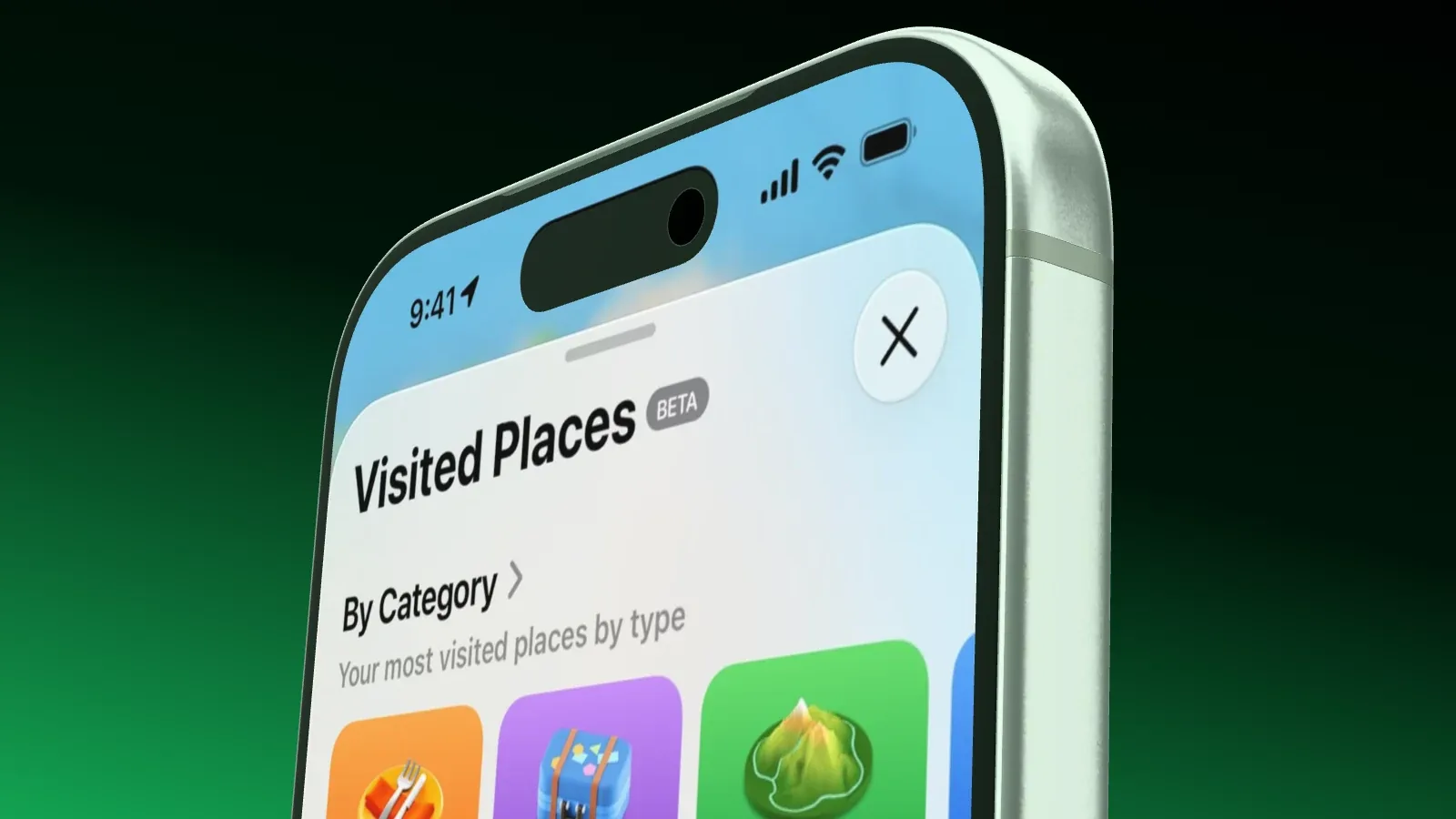
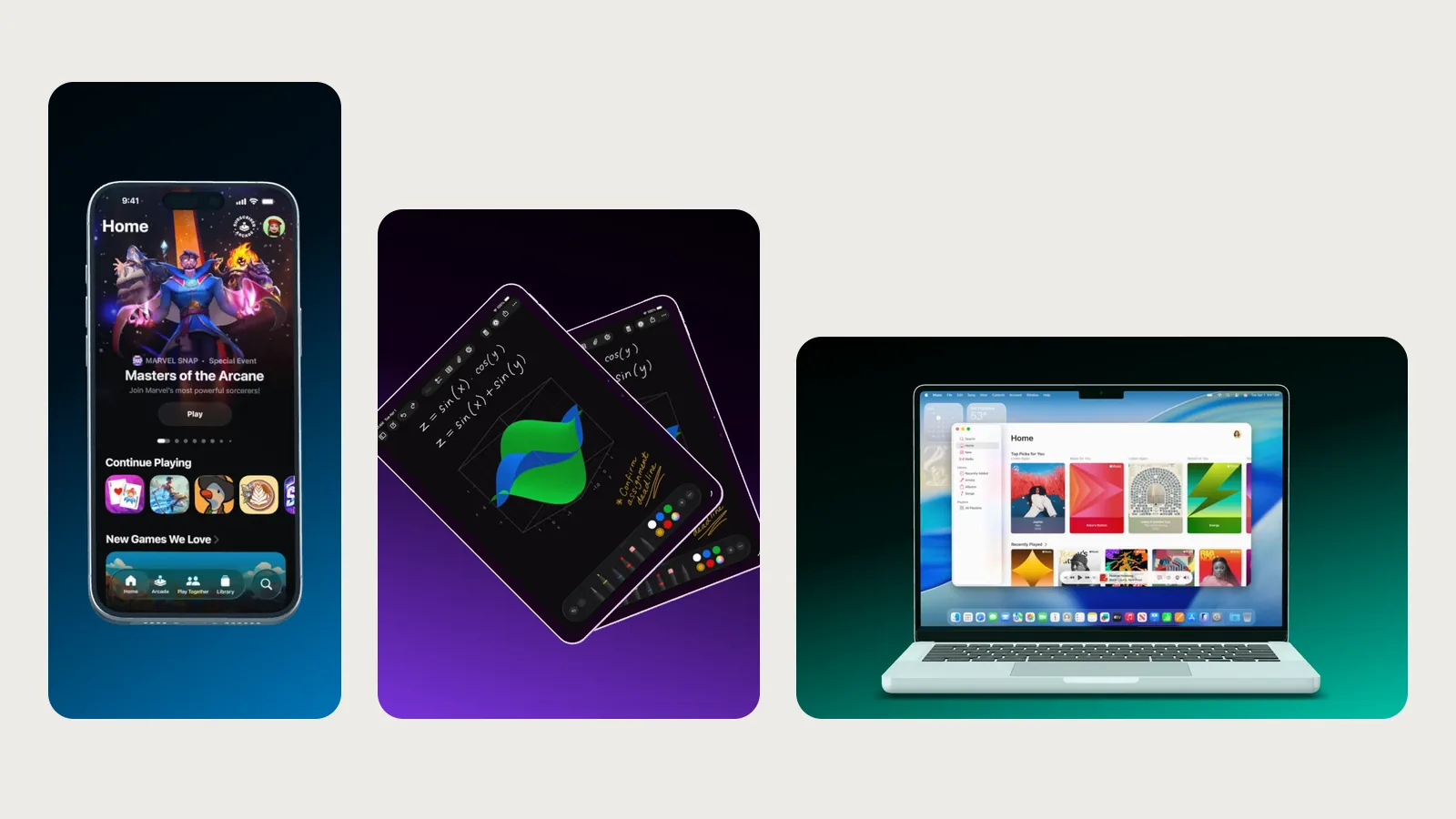
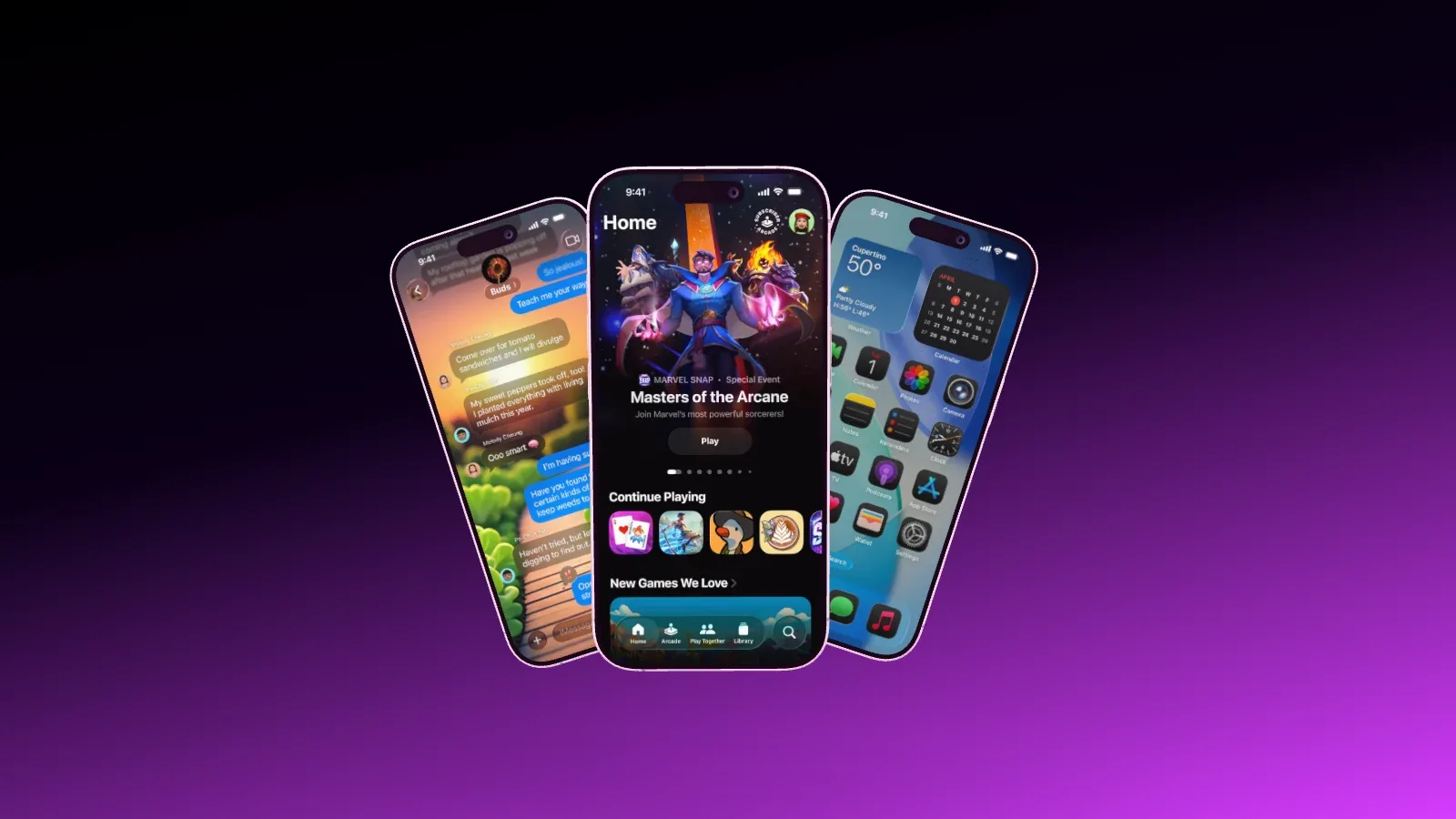
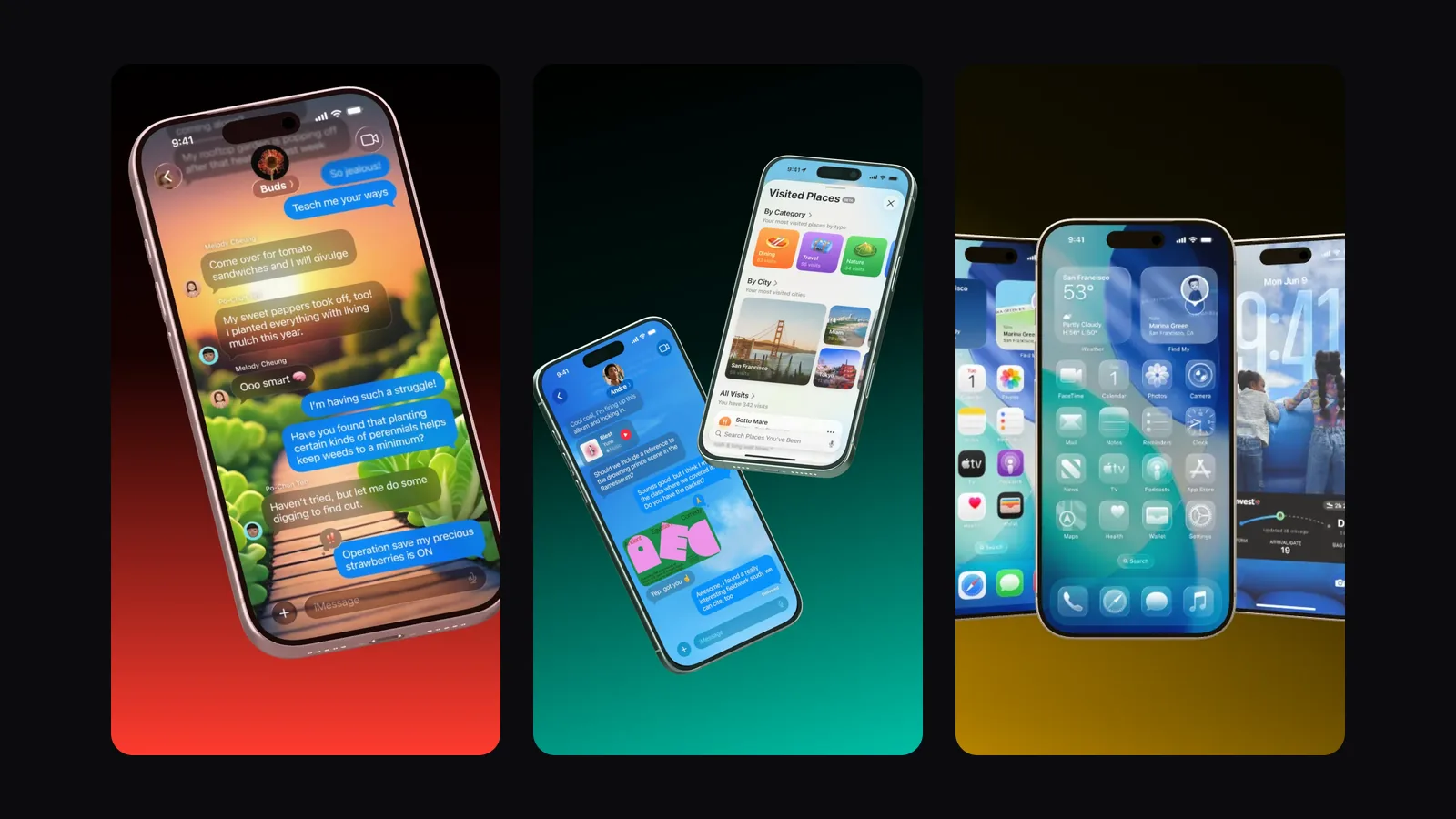
A real status bar says too much. It shows the time you took the screenshot, a half-empty battery, your carrier’s name and a few notifications. When Android records the screen, a red pill joins them. None of that belongs in a product shot. The usual choice is 9:41, full signal and a full battery, the way Apple has shown it in its own images since the first iPhone.
Showoff replaces the bar
Showoff has a switch for this. Select the phone and turn on “Statusleiste ersetzen” (replace status bar) next to its screens. Showoff then cuts off the real bar at the top, fills the strip with the colors right below it and draws a clean bar with 9:41, full signal and a full battery. The time and icons appear in black or white, depending on the background.
The switch only shows where it does something. It is missing over a video and over a fitted screenshot. It is part of Pro, and on Free it is grayed out.
It also helps with Android screenshots on an iPhone. Their own bar disappears, and nothing foreign sits under the Dynamic Island anymore. The red pill of a screen recording is gone afterwards too.
Your AI can do it too
If your AI builds the mockup over MCP, simply ask for it, for example with “Replace the status bar on every phone with a clean 9:41 one.” It turns on the same switch on every phone that you find in the editor. In a launch video you don’t even need that. There every phone draws its own clean bar by itself.
Clean captures in the iOS Simulator
If you take your screenshots in the Xcode simulator, set up the bar with a command in the terminal first. The word booted stands for the simulator that is currently running.
- xcrun simctl status_bar booted override --time "9:41" --batteryState charged --batteryLevel 100 --cellularBars 4 --wifiBars 3
- xcrun simctl io booted screenshot shot.png
- xcrun simctl status_bar booted clear
The first command sets the time, battery and signal. The second saves the screen as a PNG, and the third resets the bar afterwards. The setting only applies to the simulator.
A screenshot from the simulator has the size of the simulated device. The iPhone 16 Pro Max simulator, for example, delivers 1320 × 2868 pixels. That is exactly the App Store size for 6.9-inch and exactly the display of the iPhone 16 Pro Max in Showoff.
On a real iPhone
A real iPhone has no such command. You can still set the time to 9:41 by hand. In the settings, go to General, open Date & Time and turn off setting it automatically. Battery, signal and notifications stay real, so charge the iPhone fully first and turn on the Do Not Disturb focus. The switch in Showoff takes care of the rest.
Demo mode on Android
Android has a demo mode. It works in the emulator and on a real device with USB debugging. You allow it once, start it and set the clock to 9:41. The adb tool for this comes with the Android SDK platform tools, which Android Studio installs along with it.
- adb shell settings put global sysui_demo_allowed 1
- adb shell am broadcast -a com.android.systemui.demo -e command enter
- adb shell am broadcast -a com.android.systemui.demo -e command clock -e hhmm 0941
- adb shell am broadcast -a com.android.systemui.demo -e command battery -e level 100 -e plugged false
- adb shell am broadcast -a com.android.systemui.demo -e command notifications -e visible false
The last two commands fill the battery and hide the notifications. You get the screenshot onto your computer with adb exec-out screencap -p > shot.png. To leave demo mode, run adb shell am broadcast -a com.android.systemui.demo -e command exit.
Which way when
- Screenshots from the simulator or the emulator are best captured clean right away. It costs nothing and works with any tool.
- Screenshots from a real phone and recordings with the red pill are fixed by the switch in Showoff.
- If a set mixes screenshots from different sources, use the switch everywhere. Then the bar looks the same on every image.
- In a launch video there is nothing to take care of.
The bar alone doesn’t make a good image. How to export store screenshots at the right size is in App Store screenshot sizes 2026. How to capture and swap them fresh with Claude Code on every release is in Keeping screenshots up to date with Claude Code. The glossary explains the term itself.