Keeping screenshots up to date with Claude Code: capture, upload, swap
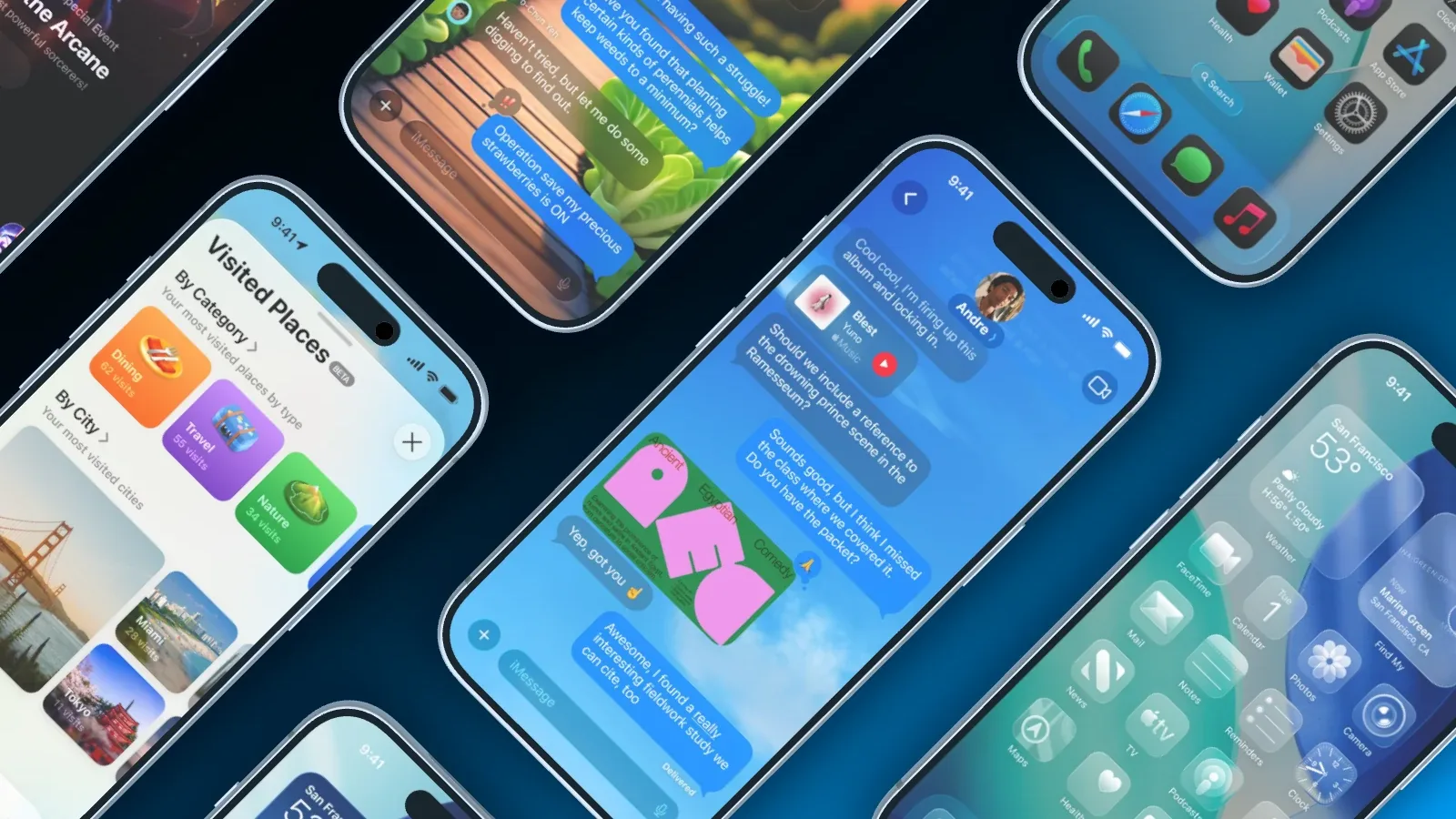
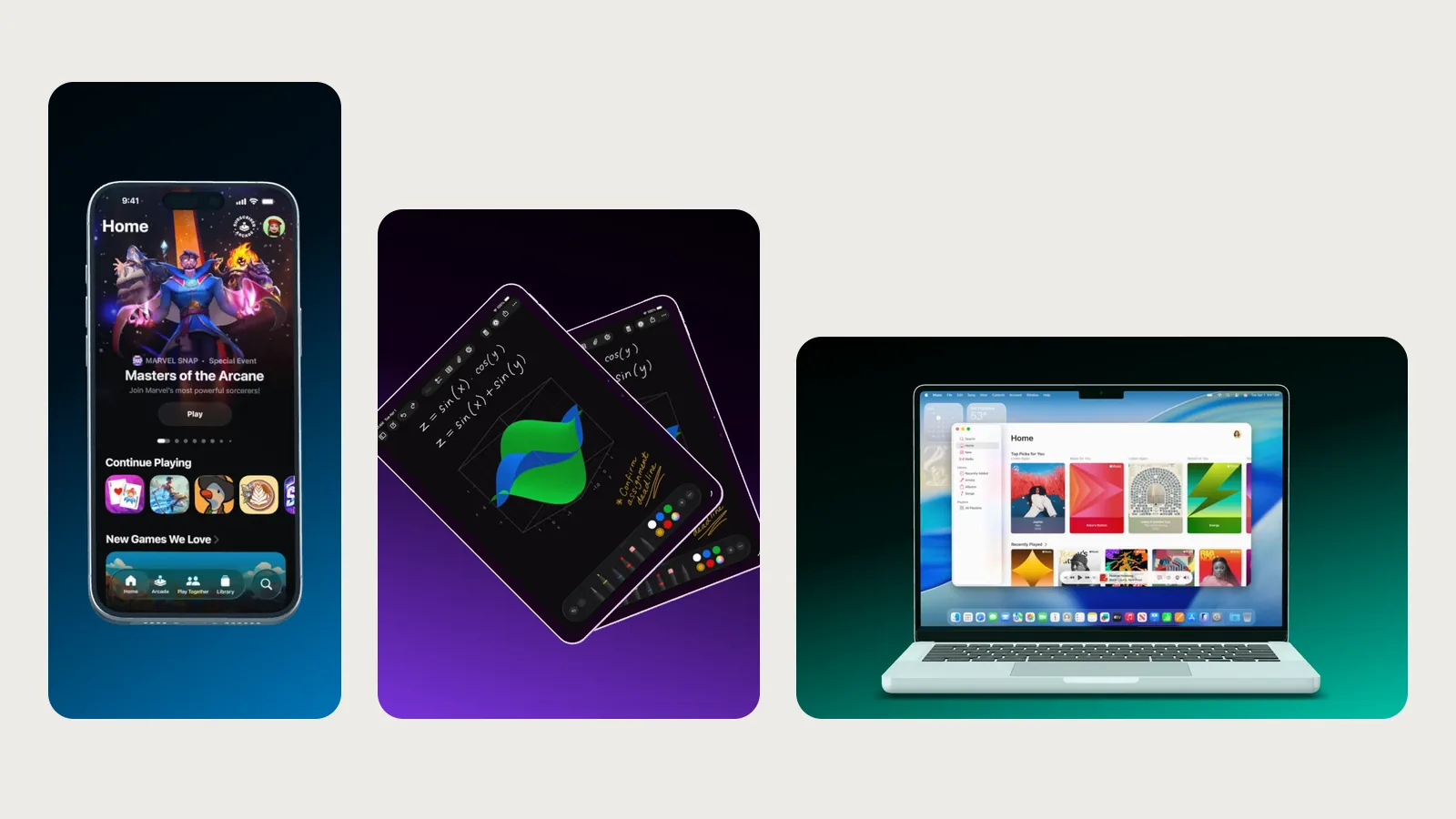
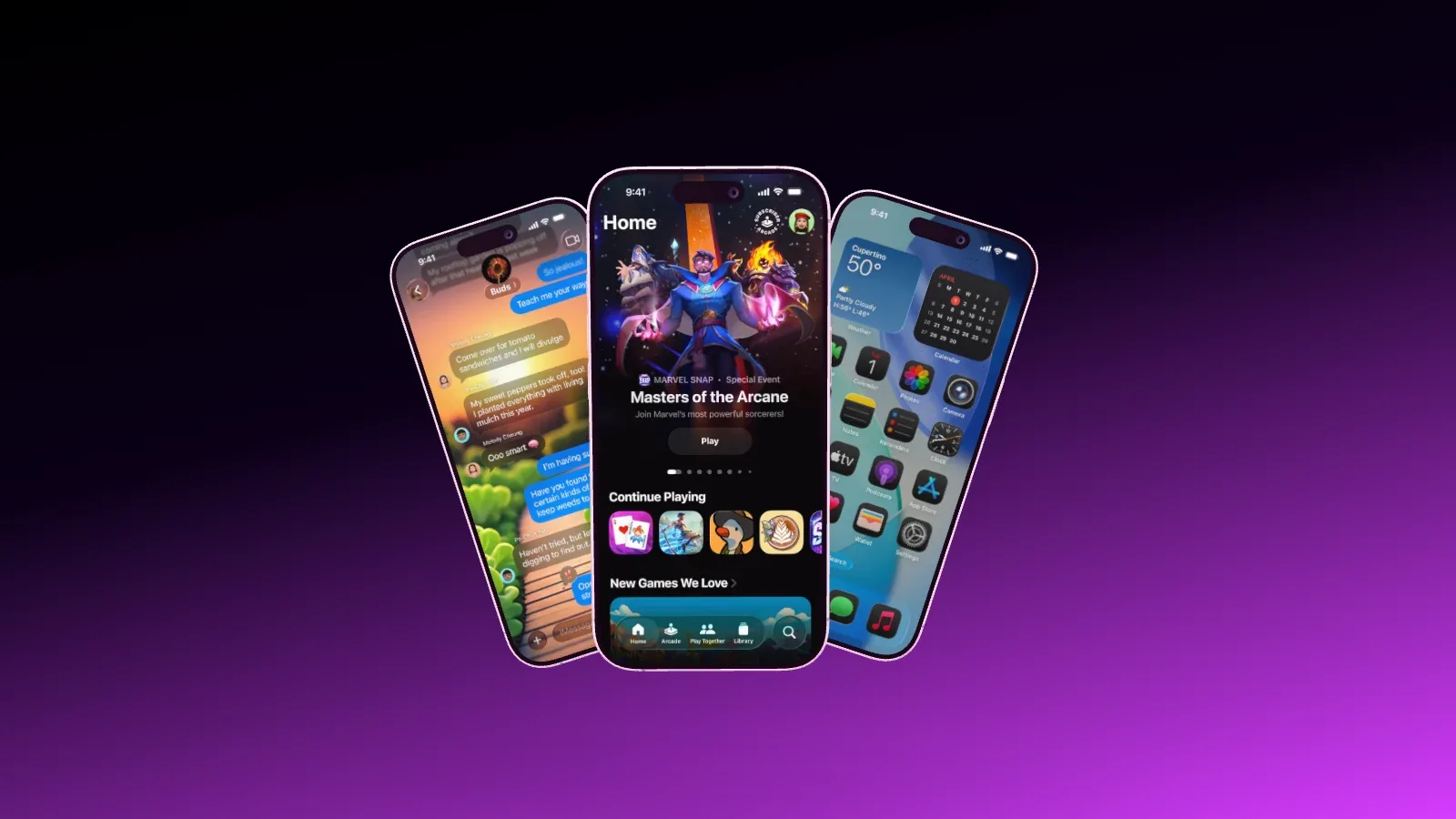
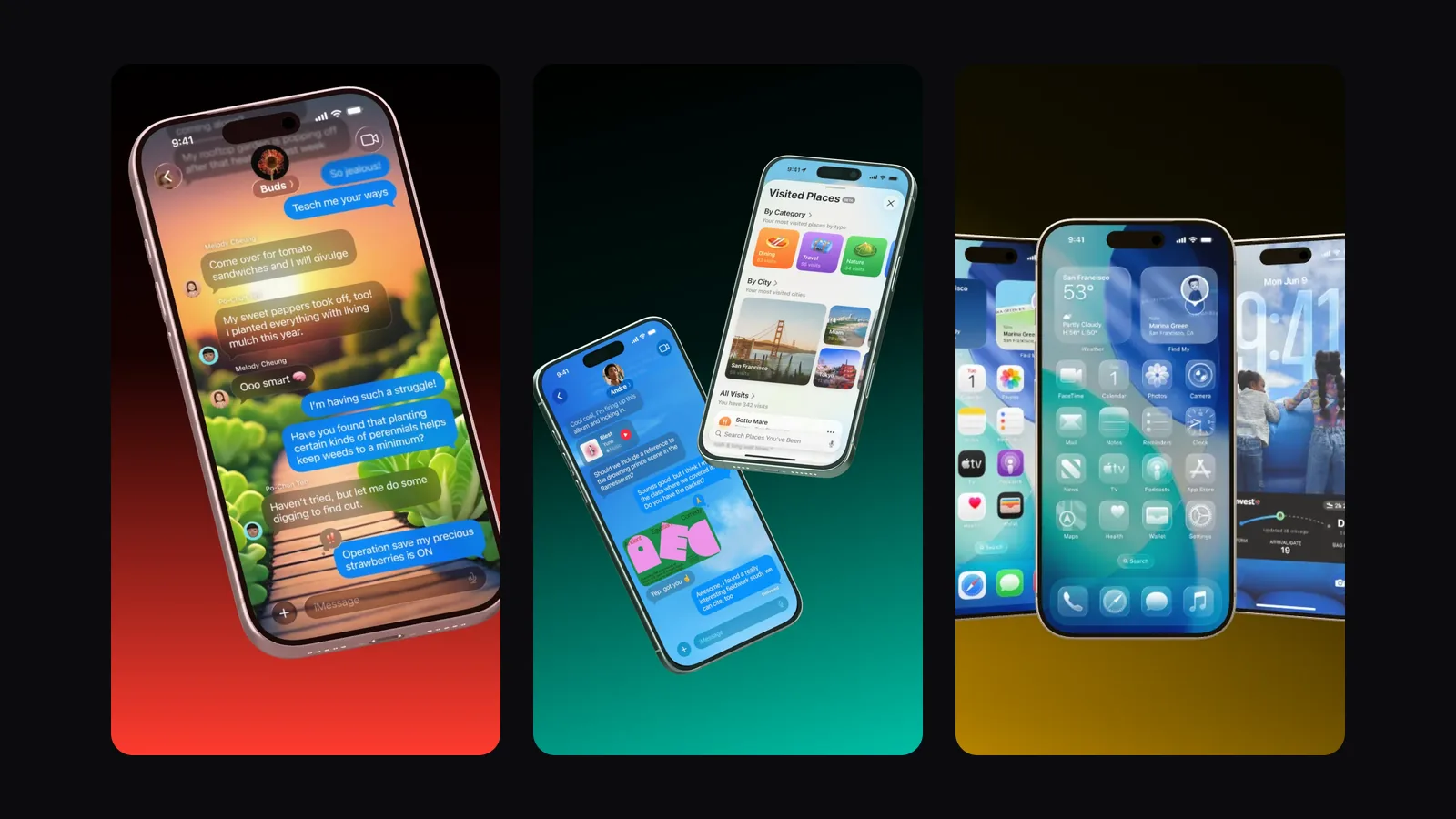
Every new version of your app makes your store images a little older. Capturing new screenshots, putting them into every mockup and exporting everything again takes an afternoon by hand. With Claude Code and Showoff over MCP, it becomes one request in the terminal. Claude Code captures the screenshots, uploads them, puts them on the devices and exports the images.
Set up Showoff in Claude Code
Once in the terminal is enough. Then open /mcp in Claude Code and sign in to Showoff.
- claude mcp add --scope user --transport http showoff https://showoff.dev/mcp
The connection works for you in one organization. MCP is part of Pro, and on Free you can try it for 3 days. Everything about the setup is in the documentation.
Capture the screenshots
Claude Code works in your terminal and can capture the screenshots itself, with one of these commands depending on the platform.
- In the iOS Simulator with xcrun simctl io booted screenshot shot.png
- In the Android emulator with adb exec-out screencap -p > shot.png
- In the browser with Playwright, for example npx playwright screenshot --viewport-size "1440, 900" http://localhost:3000 home.png
For a clean status bar, set up the simulator and the emulator first, as described in A clean 9:41 status bar. Capture each screen at the size of the device it lands on in the mockup. Capture a website for the MacBook at 16:10, for example at 1440 × 900 pixels.
Upload without a detour
The files now sit on your computer. Claude Code asks Showoff for an upload link with get_upload_link. It is valid for 30 minutes and only for this one project, and it needs no key. Then Claude Code uploads each file with a command like this one, all at the same time.
- curl -sS -F [email protected] "<link>?assign_to=<device id>"
With assign_to the file goes straight onto that device’s display and replaces the old screenshot. Without it, the file only goes into the project’s media library. Sending images as base64 through the chat would be slow and breaks off with large files, which is why Claude Code uses the link.
Swap them in every project
Your AI finds your projects with list_projects and uses get_scene to see which devices they contain and what is on their displays. That way it knows which new screenshot goes where. If you have a project open in the editor, you see every swap live. Before anything is saved, Showoff checks the result with the art-direction review.
Export again
For a still, export_image renders the finished image on the server, exactly the way the editor exports it. Claude Code gets a link that stays valid for seven days and can download the file straight into your folder. You export a film in the editor as usual.
Exports above Full HD count toward your exports in 2K and 4K over MCP too. Once the allowance on Pro is used up, the AI asks you before it keeps exporting for €1 per image. The numbers are on the pricing page.
The request to Claude Code
Once it is set up, one sentence is enough. For example like this.
- Capture the Home, Search and Profile screens in the running simulator with a clean status bar. Swap them into my Showoff project App Store and export all images to ./store.
- Take a screenshot of http://localhost:3000 at 1440 × 900 and put it on the MacBook in the Showoff project Website.
- Which of my Showoff projects still show the old home page?
If you do this for every release, save the request as a custom command in Claude Code. A file under .claude/commands is all it takes, and then you run it with a slash.
So it works every time
- Give the screens fixed names such as home.png or search.png. Then Claude Code knows next time which one goes where.
- Note in your repository’s CLAUDE.md file which Showoff project shows which screens. Claude Code reads it every time it starts.
- Use test data that looks good and shows nothing private. The screenshots end up public in the store.
- Look at the images before they go to the store. Claude Code gives you the links to the projects in the editor for that.
For scripts and CI without browser sign-in there are API keys. You create them in the MCP section of the settings, as described in the documentation.
Launch videos too
A launch video gets new screenshots the same way. There the extra parameter is called launch_screen and names the slot in the video. Then you render the video again on its page, more on that in Launch video with AI.