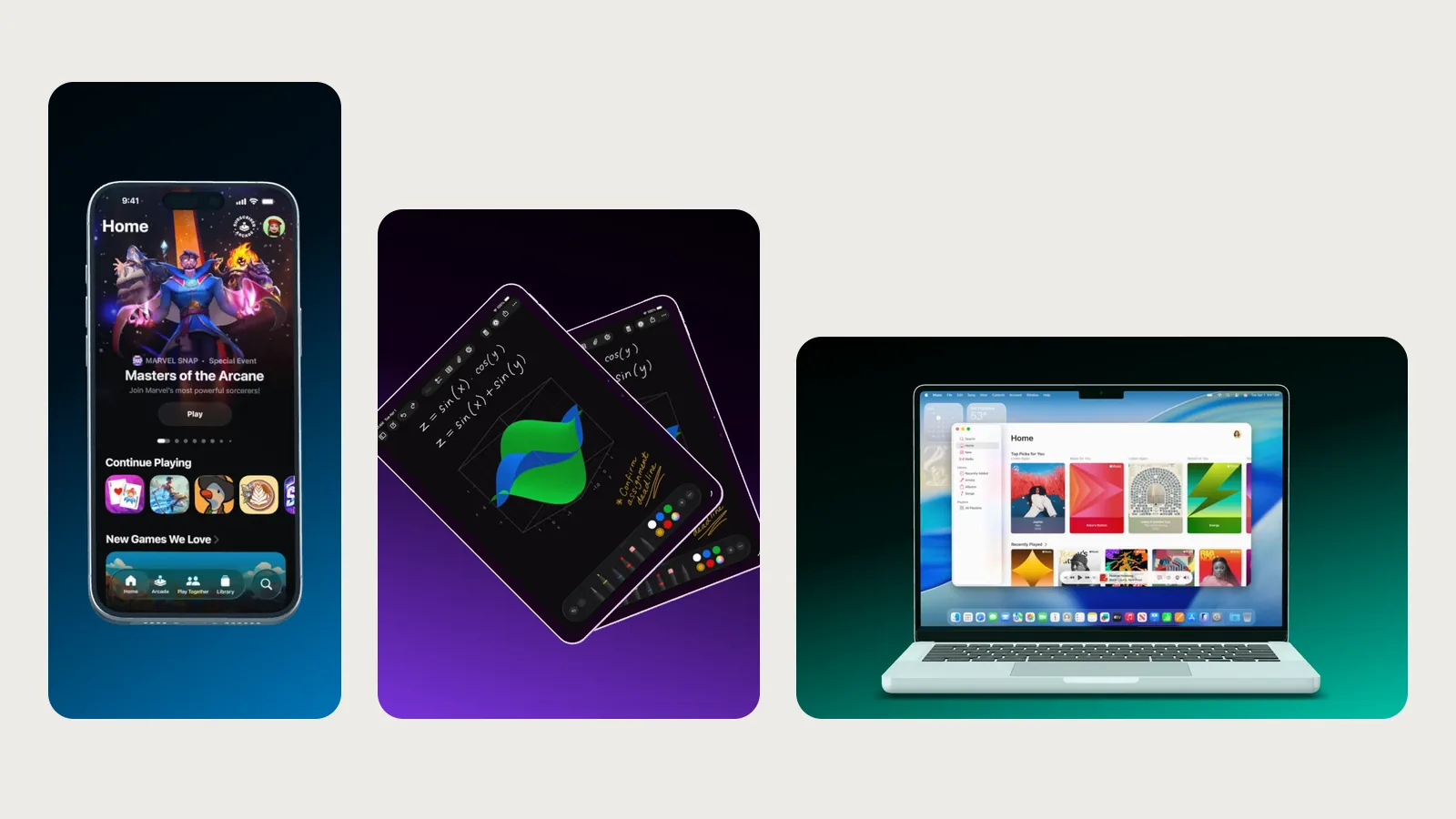
Website mockup on a MacBook: screenshot, browser window and recording
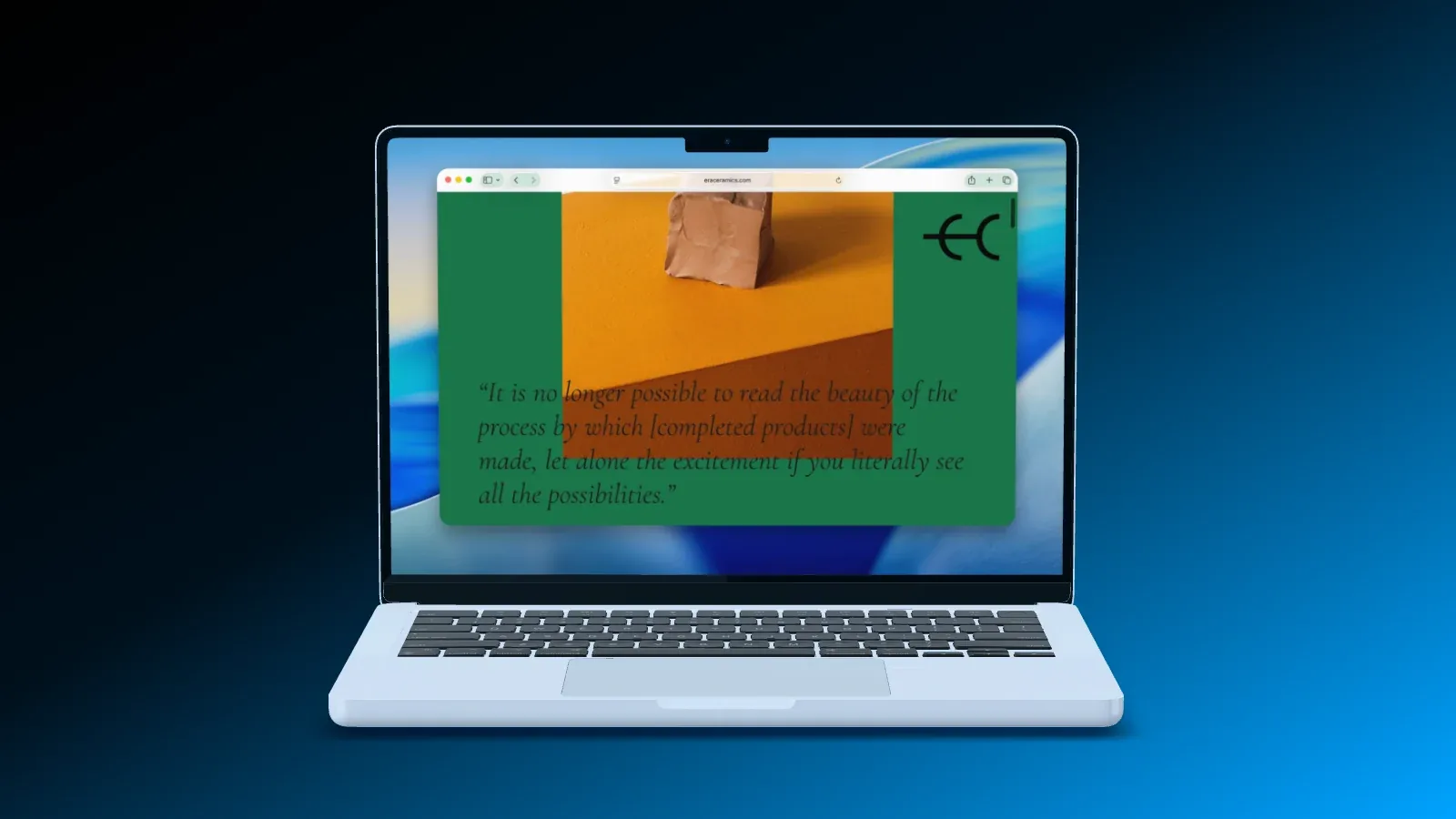
A website is not a phone screenshot. What matters most sits at the top and along the edges, the logo on the left, the sign-in on the right, the sidebar in a web app. That is why Showoff puts a web screenshot on a MacBook differently than an image on a phone. This guide shows how to get your page onto the screen cleanly.
The right capture
The MacBook shows a page at a 16:10 aspect ratio. So capture your page at 1440 × 900, 1920 × 1200 or 2880 × 1800 pixels, and it fits exactly. The easiest way is your browser’s developer tools, where you set the size of the view and take a screenshot of it. Showoff also shows the recommended size on the device, above the list of its screens.
Other sizes work too. The width always stays whole, and the page starts at the top. If your screenshot is wider, such as 16:9, Showoff continues the page at the bottom instead of cutting something off on the left and right. If it is a little taller, only what you would scroll to is missing at the bottom. A very long page, on the other hand, gets fitted in whole, and then it becomes small. So crop it to the height of one screen first.
What to watch for when you capture
- Close cookie banners, chat windows and notices before you capture. In a mockup they look like a mistake.
- Show real but harmless data. Empty tables and placeholders give away right away that it is a dummy.
- For close-ups, capture at 2880 × 1800 pixels. When the camera moves in close, the text then stays sharp.
- If your page has a dark design, choose the dark appearance for the window and the Dock.
Menu bar, browser window and Dock
Above the page, Showoff draws the Mac menu bar, which also holds the MacBook camera. On the device you find three switches under “Mac Oberfläche” (Mac desktop) that you can combine freely.
- “Menüleiste” (menu bar) draws the bar with the clock across the top of the page.
- “Browserfenster” (browser window) puts the page in a Safari, Chrome or Arc window.
- “Dock” places the Mac Dock with real apps below the window.
For the window and the Dock you also pick the appearance, light or dark. Both need a little room, so a capture at 1440 × 900 pixels loses a bit at the bottom. Showoff draws the browser window without any text, so there is no made-up address and no tab title.
If your screenshot already shows its own menu bar, address bar or Dock, switch the drawn one off. Otherwise everything shows up twice.
Browser windows without a MacBook
A browser window also exists as a device of its own, floating and without a laptop around it. It comes as “Browserfenster” (browser window), “Browser mit Dock” (browser with Dock) and “Browser mit Taskleiste” (browser with a Windows-style taskbar). These windows are part of Free, in every style.
The page as a video
Instead of a screenshot you can also record your page directly. Create a film and select the MacBook. Next to its screens, “Hinzufügen” (add) has the entry “Bildschirm aufnehmen” (record screen). You pick a tab, a window or the whole screen and record up to 90 seconds. The recording lands in the media library as a video and plays on the display.
Move the camera across the page
In a film, you use auto motion to draw rectangles over the parts of the page that matter, such as the headline, a price or a chart. The camera travels to them one after the other. For a lot of text, choose the “2D” mode. Then the camera looks straight at the display and doesn’t distort any letters.
Templates for websites
- Open Lid shows the MacBook straight on. The screen gets all the attention.
- Top Down shows it from above with the keyboard, like a tidy desk.
- Desk Duo puts an iPhone in front of it, for a web app and an app together.
- Lid Open opens the MacBook lid in a video, as a seamless loop.
Size and export
For a hero image on your website, go to the “Bühne” (stage) tab and choose “Kopfbild für Websites” (hero image for websites) at 2560 × 1440 pixels under “Bildgröße” (image size), or landscape 16:9 at 1920 × 1080. Free includes the 14-inch MacBook Pro in silver. The 16-inch model, space black and the Studio Display are part of Pro. Full HD always exports for free, and above that the export counts toward your exports in 2K and 4K, see pricing.
If your web app should run in a video cut to your song, read Launch video with AI. There it runs on the MacBook, in landscape 16:9. The terms around camera and motion are explained in the glossary.