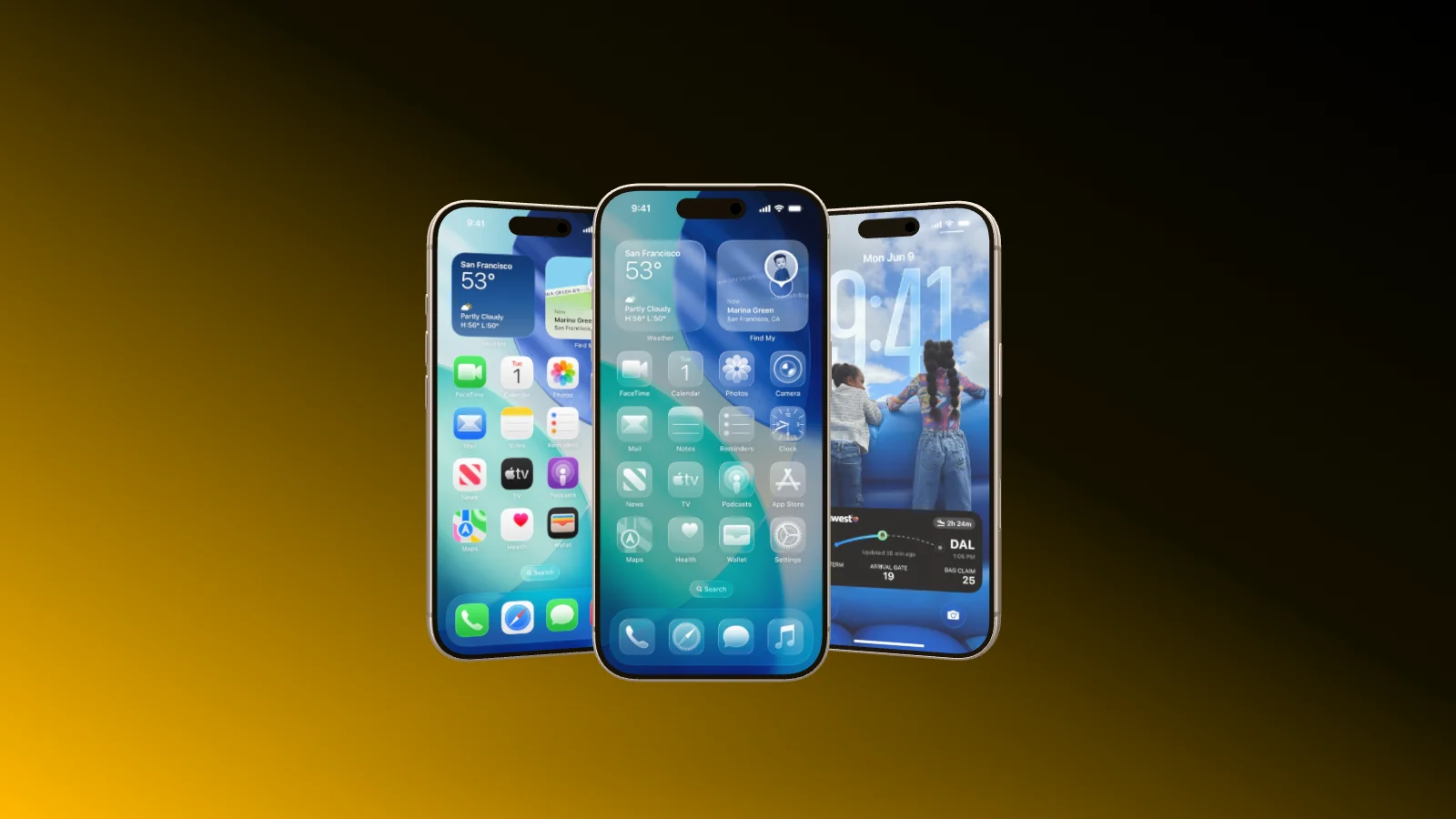
Animated mockups Your screens, in motion.

Turn a still into a film: devices fly in, float, spin and fly back out, the camera travels across your screen, and recordings play right on the display. Export it as a video, up to 60 frames per second.

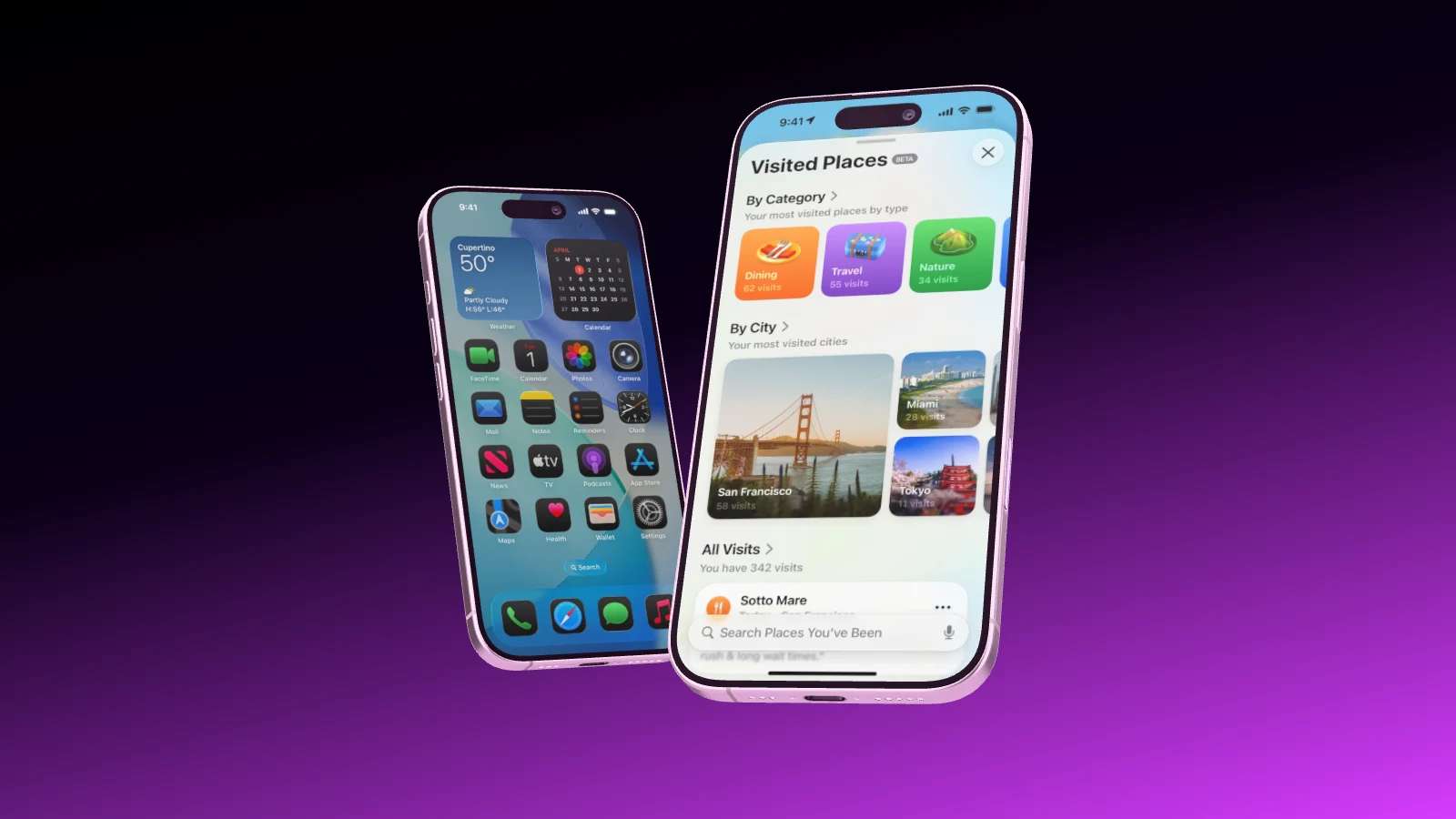
Three iPhone 17 Pro spring into place one after the other, then fly out again
Motion

Entrances, loops and exits. No keyframes.

Pick a motion from a card and it plays on the stage right away. Devices bounce, roll or spin in, float and rock while they are on screen, and fly out at the end. Strength and speed are sliders, and every motion stays editable.

  • One entrance, one exit and as many continuous motions as you like
  • Copy the motion of one device and paste it onto the others
  • A MacBook can open and close its lid in the film
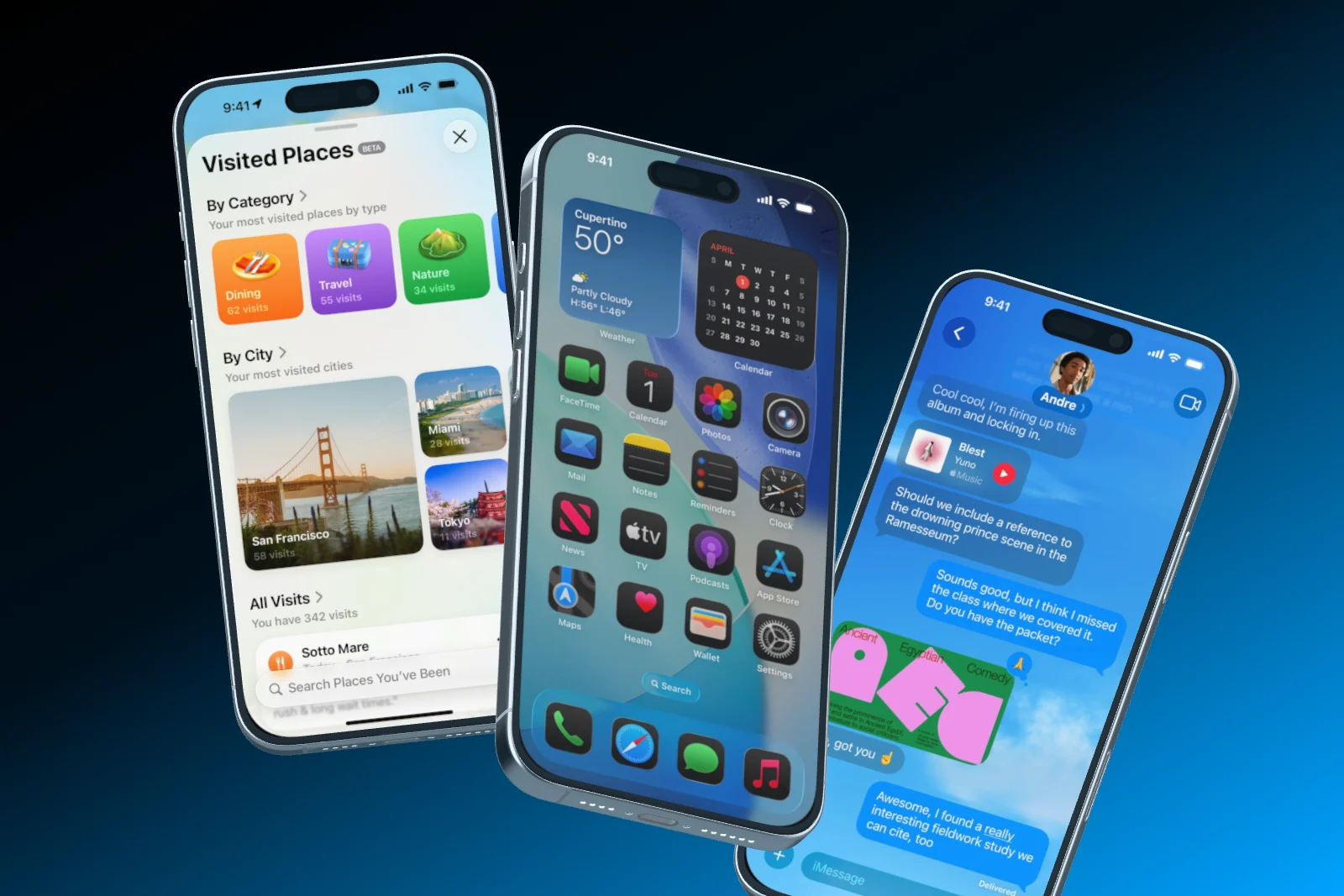
Three iPhones rise into view one after the other, float and disappear again
Timeline 6 s · Loop
Auto motion

Mark what matters. The camera does the rest.

Draw a few areas on the display, and Showoff turns them into a camera move with real perspective, from one area to the next. No angles in degrees, no curves. Do not like the move? Roll again over the same areas.

  • Areas drawn straight onto the screen
  • Free shots from below or around the device in between
  • The camera returns to your shot at the end, or ends on the close-up
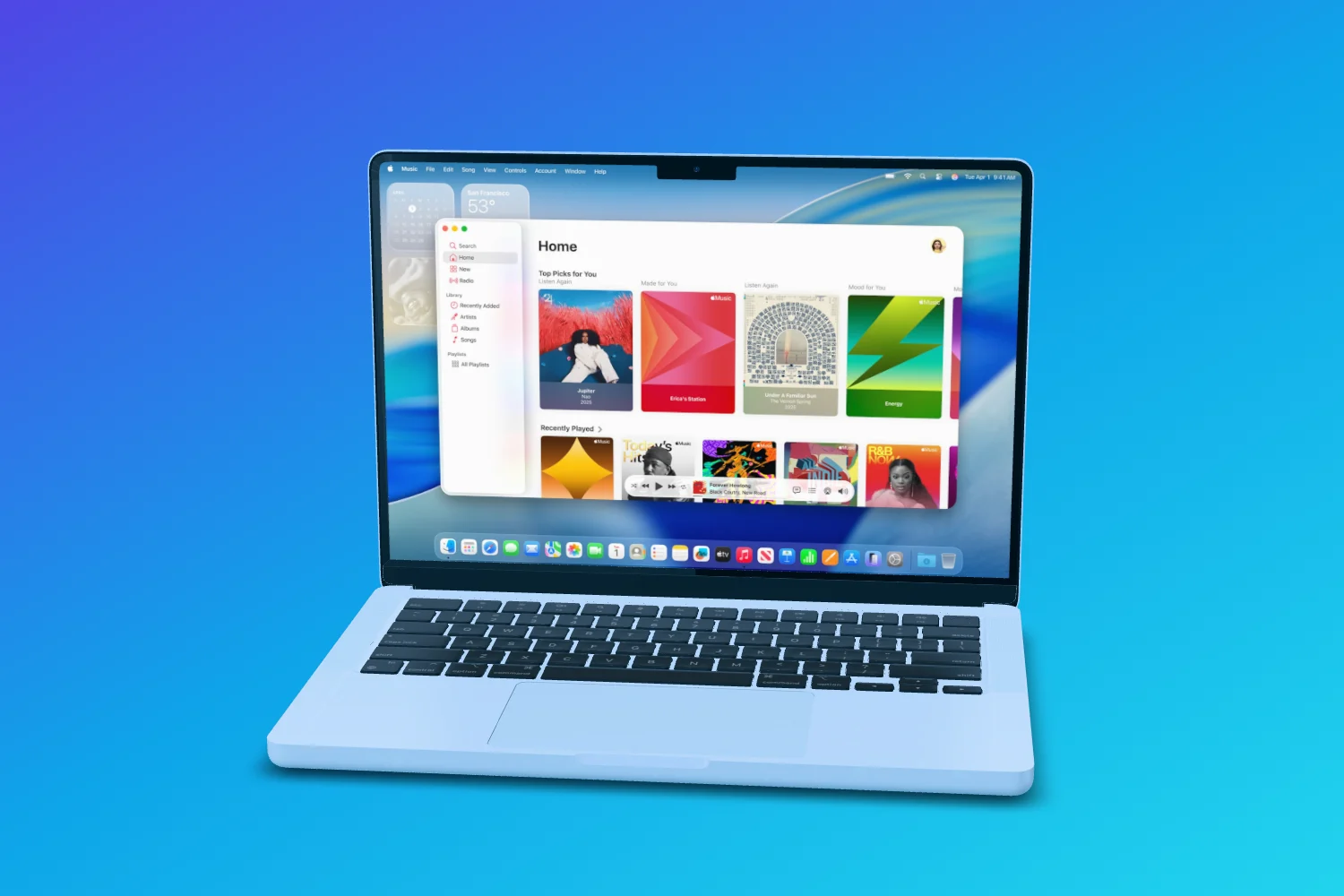
A MacBook with Apple Music on its display on a blue gradient, the camera moving across it
Camera move Area 1 · Area 2 · Area 3
Walkthroughs

A whole flow of your app, in one shot.

Put several screenshots or a screen recording on the display. The camera follows from screen to screen, and “Cut pauses” takes the stretches out of a recording where nothing moves.

  • Camera follows screenshots, in one click
  • Screen recordings straight from a tab, window or screen
  • Music under the film, with the part of the song you choose
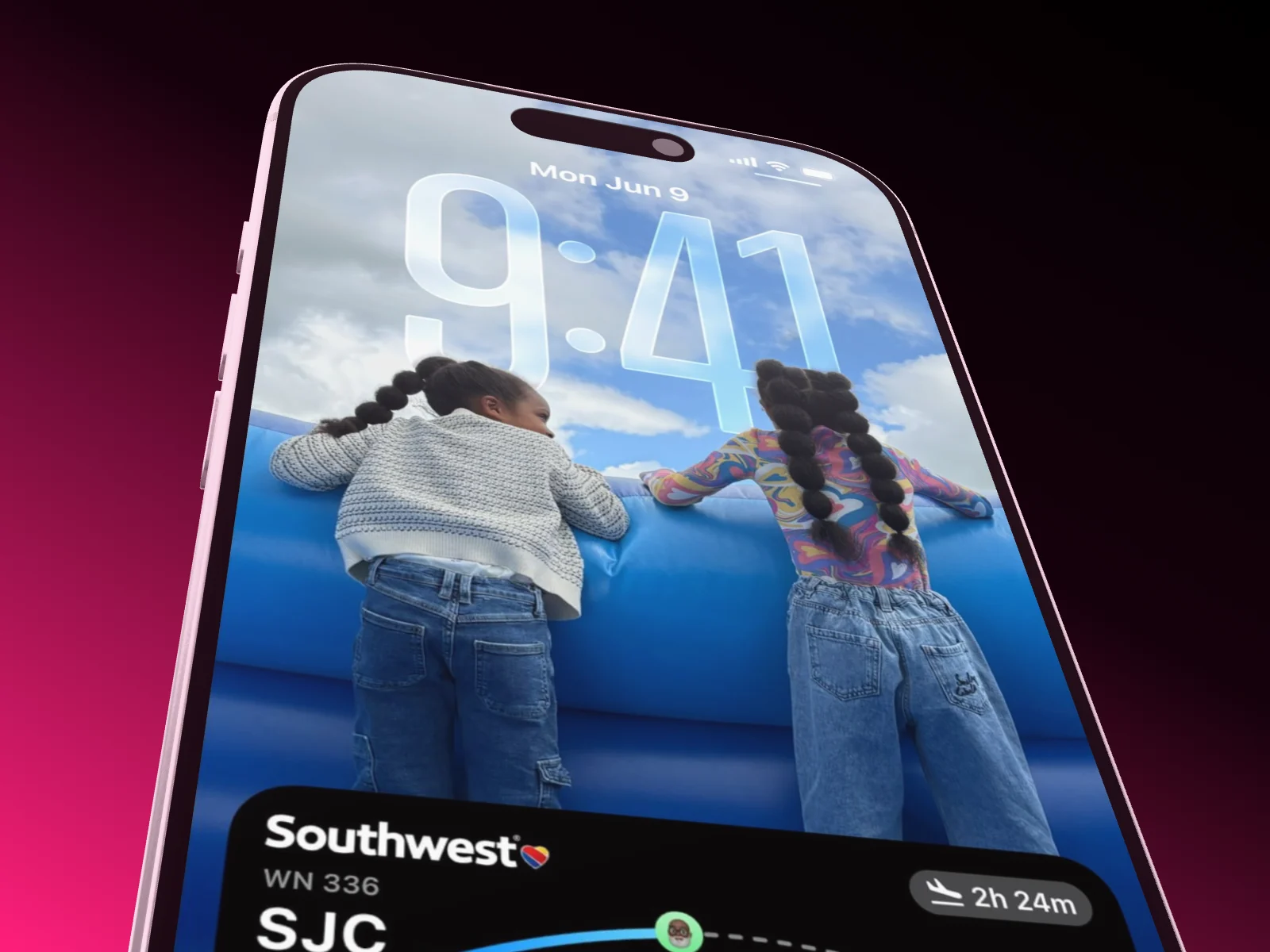
The camera sweeps across an iPhone 17 Pro and tours the screen from top to bottom
Camera follows screenshots One area per screenshot
Video export

MP4 or WebM, 24 to 60 fps.

The video is rendered frame by frame in your browser, so nothing stutters, and it lands straight on your computer. Motion blur makes it look filmed, and WebM keeps a transparent background.

  • Up to 4K, with sound
  • Motion blur, depth of field and 60 fps with Pro
  • 720p at 30 fps is unlimited on every plan
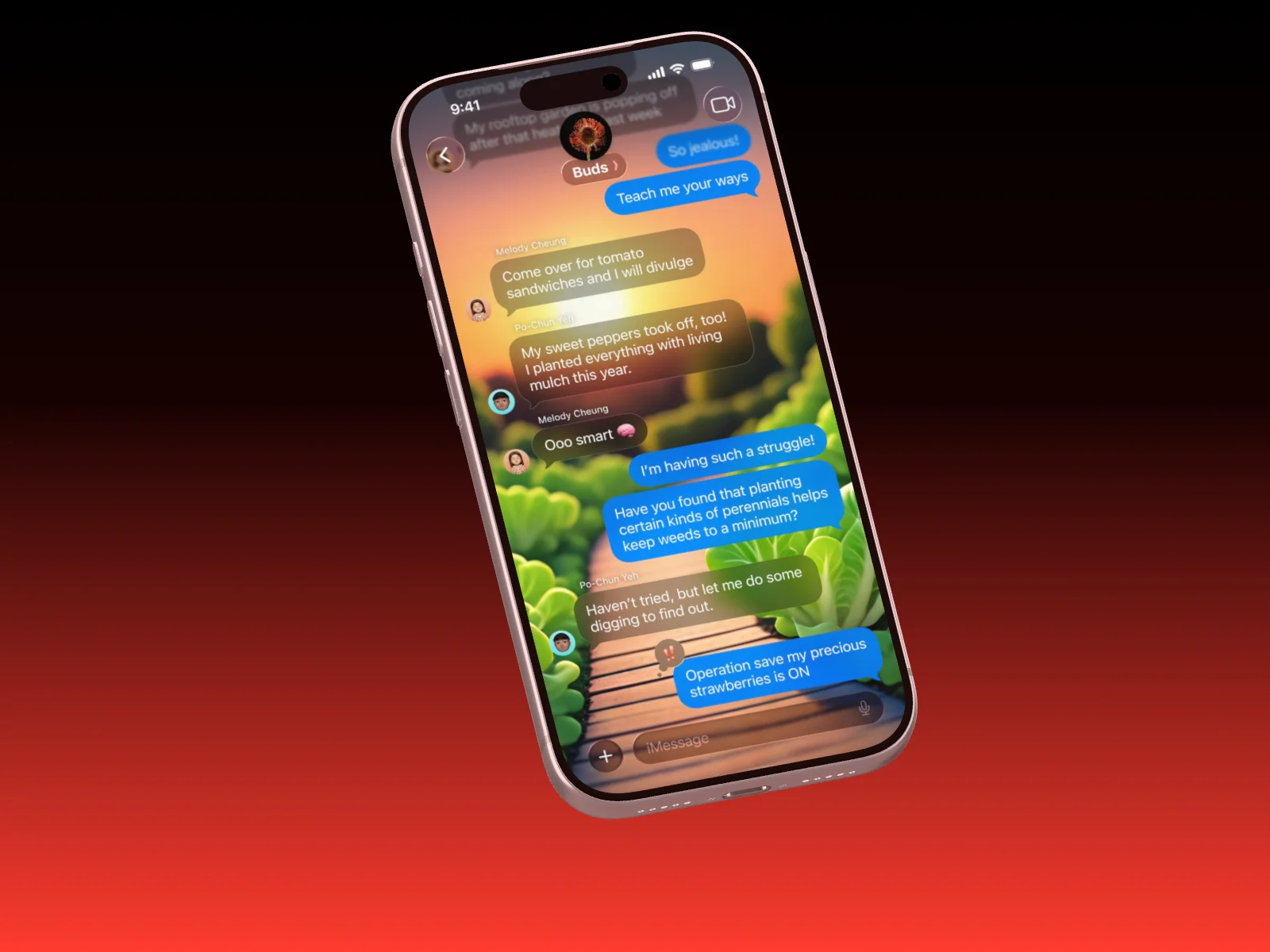
Two iPhone 17 roll into the frame one after the other and settle side by side
Export video MP4 · 1080p · 60 fps

And plenty more The details that save you time

  • Magnet lines

    Devices snap to each other’s centers, and the camera centers itself.

  • Copy motion

    Build an entrance once and paste it onto the other devices.

  • Swap a device

    Replace an iPhone with a Pixel without rebuilding the scene.

  • MacBook lid

    Set the opening angle, or let the lid open in the film.

  • Music with a cut

    Put music under the clip and choose which part plays.

  • Keyboard shortcuts

    Move, turn, set down and play without reaching for the mouse.

From still to film In three steps

  1. The camera pushes in on an iPhone lying flat
    01

    Create a film

    Start an empty film or pick one of the animation templates. Their motion is already in place.

  2. The camera circles slowly around a floating iPhone 17 Pro
    02

    Add motion

    Give each device an entrance, a loop or an exit, or draw areas for the camera. Drag the clips on the timeline.

  3. The camera travels over the screen of an iPhone, then the phone spins around once
    03

    Export the video

    Pick format, size and frame rate. Your browser renders the film and saves it to your computer.

Questions about animated mockups

Open the documentation

No. There are no keyframes, on purpose. Entrances, exits, continuous motion and the camera move do the job, and every position stays editable at all times.

Anywhere from half a second to two minutes. The default is 6 seconds, and “Loop” starts it over seamlessly.

Yes. Put a video on the display, or record a browser tab, a window or your whole screen right in the editor on MacBooks, the Studio Display and browser windows, up to 90 seconds.

MP4 or WebM at 24, 30 or 60 frames per second, with sound. WebM can keep the background transparent. You need Chrome, Edge or Safari 16.4 or later to export video.

Films in 720p at 30 fps export as often as you like on Free. Once a month a video goes up to 4K. Pro adds 15 full-quality exports a month, 60 fps and motion blur.

With your AI

Or describe the motion and let your AI build it.

Over MCP, Claude, ChatGPT or Cursor set up the film for you: devices, entrances, loops and the camera. You open it in the editor and export.

Set your screens in motion.