App Store screenshot generator Every image. Every language.

Create a set, drop in your screenshots and write the headlines. Showoff puts real 3D devices into every image and exports every size for the App Store and Google Play as one ZIP.

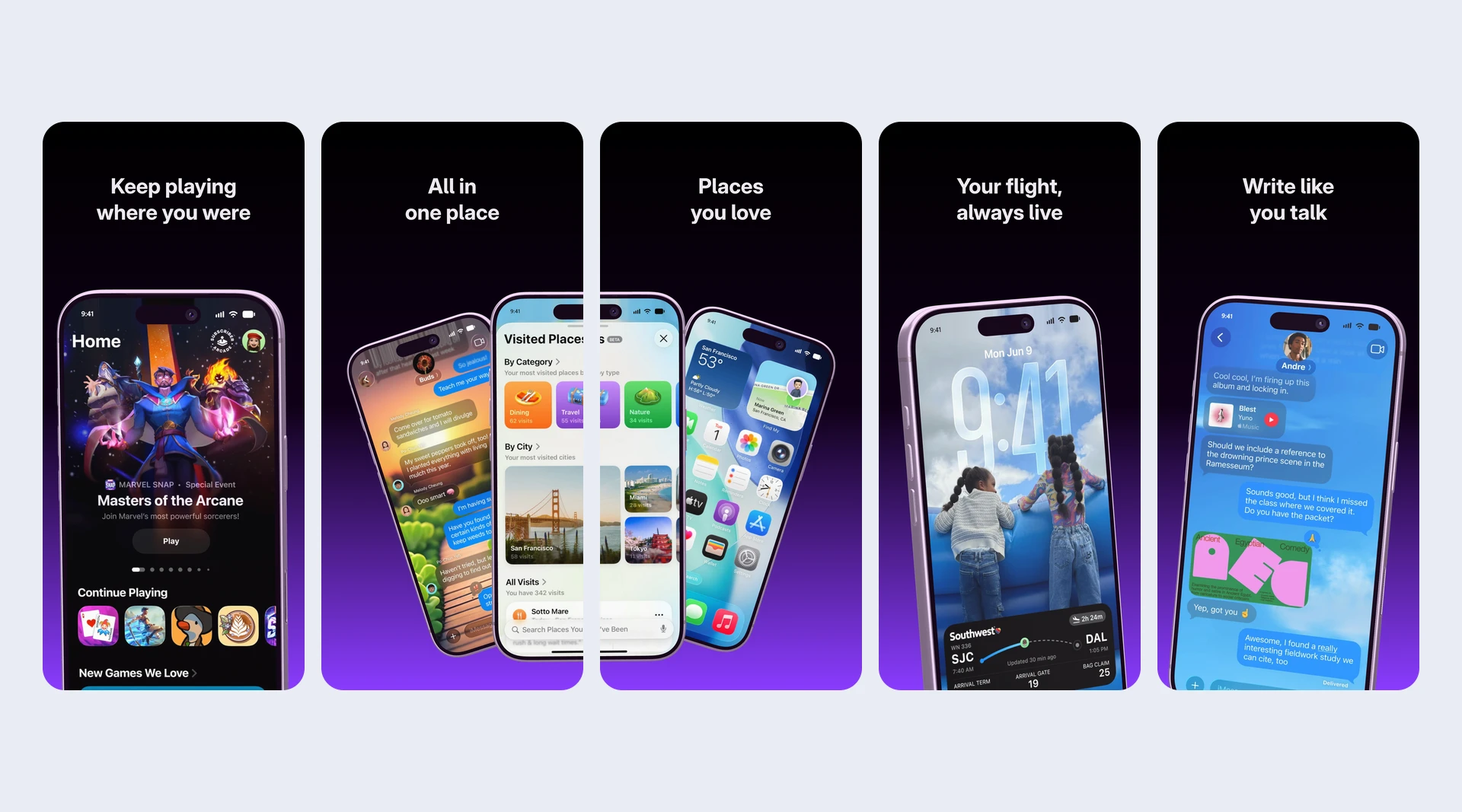
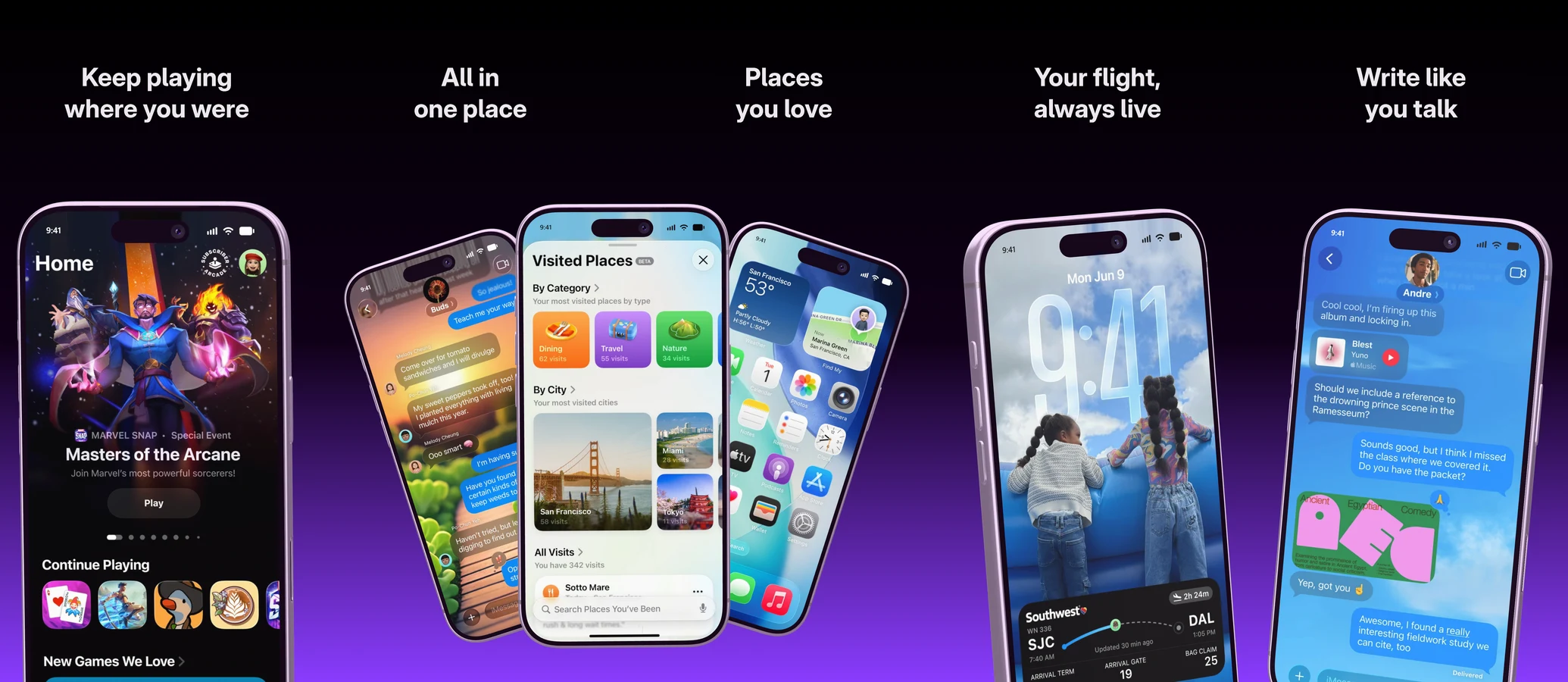
Five App Store images side by side on dark violet, each with a headline, a fan of three iPhones across the seam of images two and three
One stage

Up to ten images, side by side.

A set puts all store images on one wide stage, and dashed lines show where it will be cut. Your device stands large in each image, the way store listings look, and one highlight can run across two images.

  • “Fill empty images” puts a big phone and a headline into every empty one
  • Layouts: upright, tilted, from above, panorama or a template
  • No device is cut off at a seam
Five images of an App Store set side by side, each with a headline and an iPhone on violet
App Store set 5 images · 1320 × 2868
Every store

iPhone, iPad, Mac and Google Play.

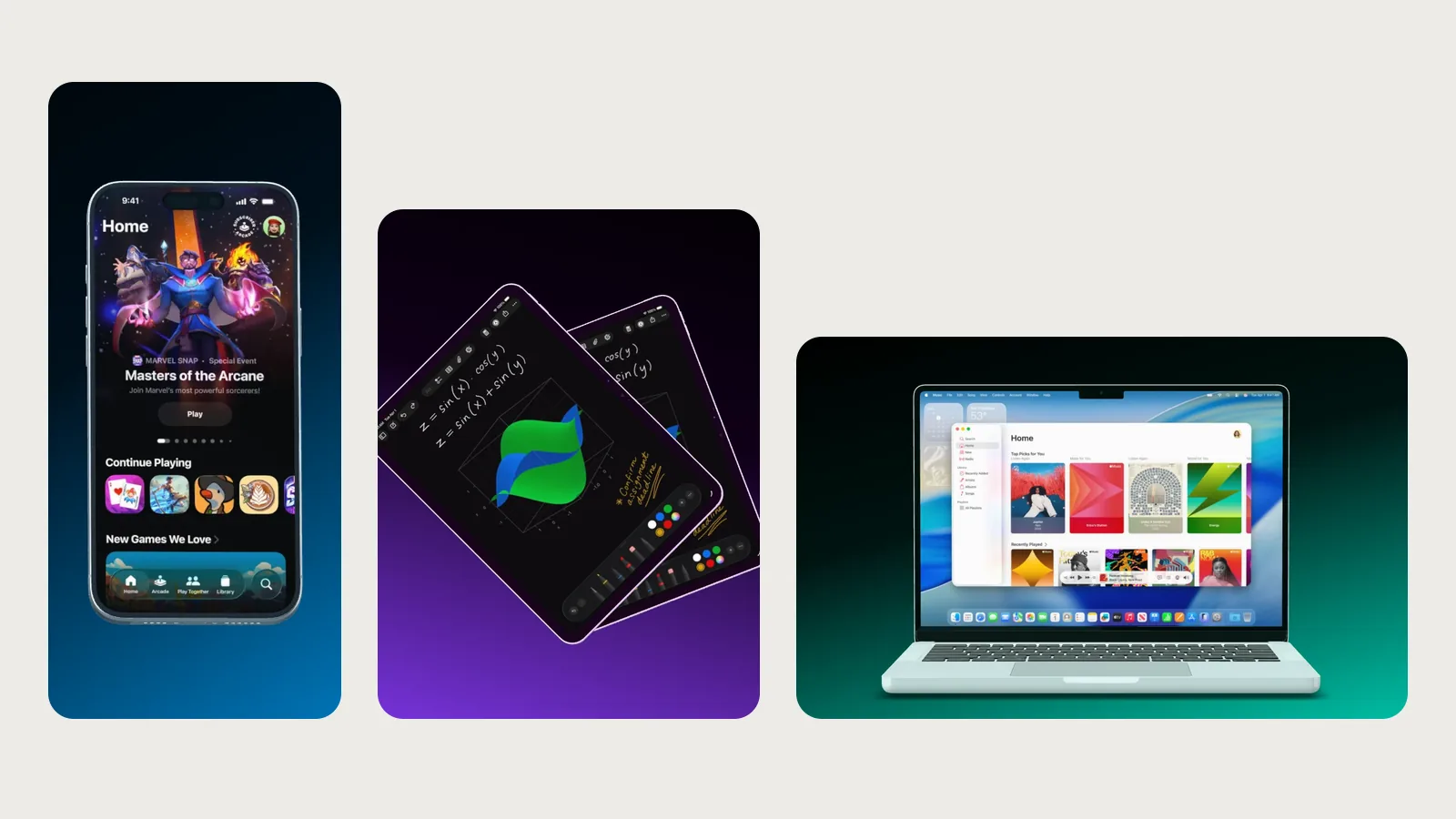
A phone set yields both stores at once: 1320 × 2868 for the App Store and 1080 × 1920 for Google Play. iPad sets come out at 2064 × 2752, Mac sets at 2880 × 1800.

  • PNG without transparency, as Apple requires
  • One folder per store and language, such as “App Store/de-DE”
  • The whole set counts as one export
Three store images side by side: an iPhone, two tilted iPads and a MacBook
Export set App Store · Google Play · one ZIP
Every language

Translate the headlines, not the layout.

Add languages to the set and switch between them above the stage. Whatever you type counts for that language only. Where a translation is missing, the base language shows, and the export tells you.

  • Headlines that fit, checked for the App Store search list
  • A warning when a text reaches across a seam
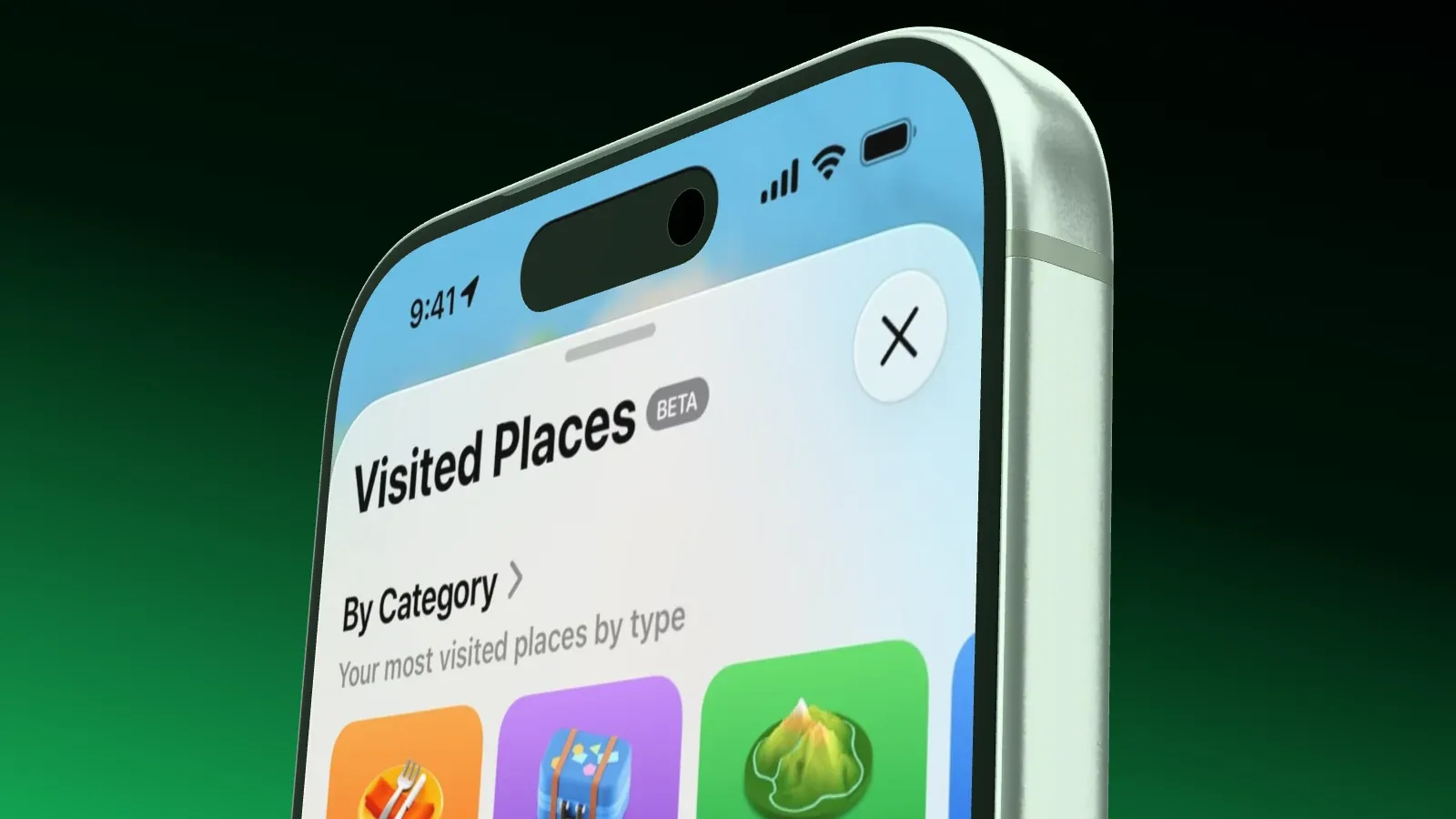
  • Replace the status bar: 9:41, full signal, full battery
An iPhone close up on green, its status bar showing 9:41, full signal and a full battery
Languages English · German · Spanish

Templates Pick one, drop in your screenshot, export

Your store set In three steps

  1. Image size App Store set · 5 images
    01

    Create a set

    In a still, pick a set under “Image size” and choose how many images it holds and in which languages.

  2. Fill 3 empty images A phone and a headline in every image
    02

    Fill it

    One click puts a big phone and a headline into every empty image. Then swap the screenshots and write the texts.

  3. Export set App Store 1320 × 2868 · Google Play 1080 × 1920
    03

    Export the ZIP

    Every image in every store size and language, checked before export, in one ZIP file.

Questions about App Store screenshots

Open the documentation

A phone set exports 1320 × 2868 for the App Store and 1080 × 1920 for Google Play. iPad sets come out at 2064 × 2752, Mac sets at 2880 × 1800.

Up to ten images per set, side by side on one stage.

Yes. Add languages to the set, and the export puts each language in its own folder per store.

No. A whole set, in every store and language, counts as one export. Free has 1 full-quality export a month, Pro has 15.

No, on no plan.

With your AI

Or let your AI build the whole set.

Hand Claude, ChatGPT or Cursor your screenshots and the headlines. It builds the set, translates the texts and exports the ZIP, ready for fastlane if you want.

Ready for the store.